Is your phone taking too long to charge even when you are using a fast charger? Many modern Android and iPhone models support fast charging, but certain settings and everyday habits can affect charging speed.
The good news is that you do not always need a new charger or battery to improve charging performance. A few simple settings can help your phone charge more efficiently.
In this guide, we’ll look at 3 useful settings for faster charging on Android and iOS, along with some practical tips to get better charging performance.
Does Your Phone Really Support Fast Charging?
Before changing any settings, make sure your phone actually supports fast charging.
Charging speed depends on several factors, including:
- Your phone model
- Charger power
- Charging cable
- Battery condition
- Temperature
- Software settings
- Power source
A phone that supports only standard charging cannot be turned into a fast-charging device simply by changing a setting.
If your phone supports fast charging, however, the right settings and accessories can help you get the best available performance.
Setting 1: Turn On Battery or Charging Optimization Features
Modern smartphones include battery-management features designed to protect battery health.
Some of these features can change charging behavior, especially when the battery reaches a high percentage.
Android
Android phones use different names for charging and battery features depending on the manufacturer.
Look under:
Settings → Battery
You may find options such as:
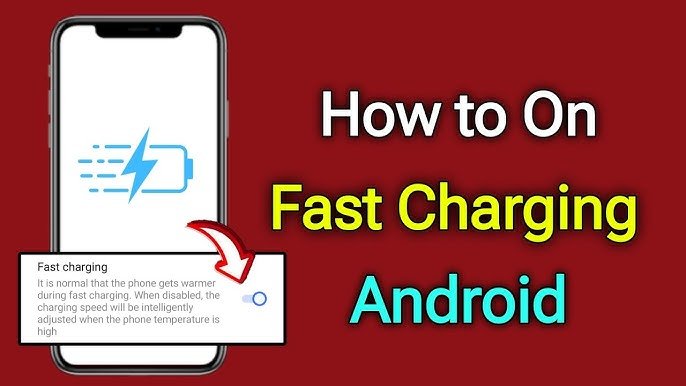
- Fast charging
- Super fast charging
- Optimized charging
- Adaptive charging
- Battery protection
If your phone provides a dedicated fast-charging option and it is disabled, enabling it may allow compatible chargers to provide the phone’s supported charging speed.
The exact option depends on your phone model and software version.
iPhone
iPhones include charging features designed to reduce battery aging.
Go to:
Settings → Battery → Charging
Depending on your iPhone model and iOS version, you may see options related to charging limits or optimized charging.
These features are primarily designed to protect long-term battery health. They may intentionally slow or limit charging under certain conditions.
If you need your phone charged quickly for a specific situation, check the charging options available on your particular iPhone.
Setting 2: Turn Off Unnecessary Background Activity
Your phone can continue using power while it is charging.
Apps running in the background may consume energy for activities such as:
- Synchronization
- Location updates
- Notifications
- Uploads
- Downloads
- Video processing
- Cloud backups
Reducing unnecessary background activity can help more of the charger’s power go toward charging the battery.
Android Background Apps
Open the recent apps screen and close applications you are not using.
You can also review battery usage by going to:
Settings → Battery → Battery Usage
The exact menu depends on your Android manufacturer.
If you notice that a particular app is consuming a large amount of battery while your phone is charging, consider restricting its background activity if the phone provides that option.
iPhone Background Activity
On iPhone, you can review background activity through:
Settings → General → Background App Refresh
You can disable Background App Refresh for applications that do not need to update in the background.
You can also check:
Settings → Battery
to see which apps are consuming the most power.
This does not magically increase the charger’s maximum power, but reducing unnecessary power consumption can help the battery charge more efficiently.
Setting 3: Use Airplane Mode When You Need a Quick Charge
One of the simplest ways to reduce power consumption while charging is to enable Airplane Mode.
Airplane Mode can disable or reduce several wireless connections, depending on the device and which features you manually turn back on.
This can be useful when you are in a hurry and don’t need cellular connectivity.
How to Enable Airplane Mode on Android
Swipe down from the top of the screen to open Quick Settings.
Tap Airplane Mode.
You can then connect the charger and leave the phone alone while it charges.
How to Enable Airplane Mode on iPhone
Open Control Center and tap the Airplane Mode icon.
Alternatively, you can find Airplane Mode under:
Settings → Airplane Mode
Remember that Airplane Mode is optional. If you need calls, mobile data, or other wireless services while charging, you may prefer to leave it disabled.
Bonus Tip: Use the Right Charger and Cable
Settings are only part of the charging equation.
Even if your phone supports fast charging, you need a compatible charger and cable to achieve the supported charging speed.
A low-power charger may charge your phone slowly even when the phone itself supports much faster charging.
Use a reputable charger that supports the charging standard and power requirements recommended for your device.
Avoid extremely cheap or damaged charging accessories.
Keep Your Phone Cool While Charging
Temperature can have a major effect on charging behavior.
Phones may reduce charging speed when they become too hot because temperature management is important for battery safety and longevity.
To help keep your phone cool:
- Avoid charging under direct sunlight
- Remove a thick case if the phone becomes unusually hot
- Don’t place the phone under a pillow while charging
- Avoid intensive gaming while charging
- Keep the phone on a hard, ventilated surface
A cooler phone can generally maintain its normal charging behavior more effectively.
Avoid Using Your Phone Heavily While Charging
Playing demanding games, recording high-resolution video, or using navigation continuously can consume significant power.
If you need the fastest practical charging, leave the phone idle while it charges.
For an emergency top-up, even a short period of reduced usage can help.
Why Does Charging Slow Down Near 80 or 90 Percent?
It is normal for many smartphones to charge more slowly as the battery gets closer to full.
Fast charging is generally most noticeable when the battery level is relatively low.
As the battery approaches a high charge level, the phone may reduce charging power to manage heat and protect battery health.
Therefore, don’t assume your charger is faulty simply because charging becomes slower near the end.
Does Turning Off the Phone Make It Charge Faster?
Turning off a phone eliminates most software activity, so the device has less power consumption while charging.
However, the difference may not always be significant.
If you need your phone quickly, a more practical approach is to:
- Connect a compatible fast charger.
- Stop intensive apps.
- Enable Airplane Mode if appropriate.
- Keep the phone cool.
- Avoid using the device heavily during charging.
Common Charging Mistakes to Avoid
Using a Damaged Cable
A damaged or poor-quality cable can cause charging problems and may prevent the phone from reaching its expected charging performance.
Using an Incompatible Charger
Not every charger supports every fast-charging standard.
Use a charger that is compatible with your device.
Charging in Extreme Heat
High temperatures can cause the phone to reduce charging power.
Keep the device away from direct sunlight and other heat sources.
Using Your Phone for Heavy Tasks
Gaming or other demanding activities while charging can increase heat and power consumption.
Expecting Fast Charging at 100 Percent
Charging often slows down as the battery approaches full capacity. This is normal behavior on many modern smartphones.
Frequently Asked Questions
How can I make my Android phone charge faster?
Make sure fast charging is enabled if your phone provides that option, use a compatible charger and cable, reduce background activity, and keep the device cool while charging.
How can I make my iPhone charge faster?
Use a compatible fast charger, reduce power-consuming activity, keep the phone cool, and consider Airplane Mode when you don’t need wireless connectivity.
Does Airplane Mode really make charging faster?
It can reduce power consumption by limiting wireless activity, which may help the phone charge more efficiently. The actual difference depends on the device and what it is doing while charging.
Should I turn off my phone while charging?
You can, but it is not usually necessary. Reducing heavy usage and background activity can provide a practical improvement without turning the phone off.
Why does my phone charge slowly after 80 percent?
Many phones reduce charging speed at higher battery levels to manage heat and protect battery health. This is normal.
Can a setting double my charging speed?
No. Software settings cannot exceed the hardware and charging limits supported by your phone, charger, and cable.
Final Thoughts
If your phone supports fast charging, a few simple changes can help you get the best possible charging performance.
The three settings worth checking are charging or battery optimization features, unnecessary background activity, and Airplane Mode when appropriate. Combine these with a compatible charger, a good-quality cable, and proper temperature management for better results.
Remember that charging speed ultimately depends on your phone’s hardware and the charging accessories you use. No setting can safely exceed the maximum charging capability designed for your device.
Disclaimer
This article is for informational purposes only. Charging options and settings vary by device model and software version. Always use compatible, manufacturer-recommended charging accessories and follow your device’s safety guidelines.