Raise to Answer Call: How to Answer Phone Calls by Simply Lifting Your Smartphone
Smartphones have become an essential part of our everyday lives. From making phone calls and sending messages to browsing the internet, using social media, and managing daily tasks, we rely on our mobile devices for almost everything. However, even simple tasks such as answering an incoming phone call can sometimes become inconvenient, especially when our hands are busy or we are doing something else.
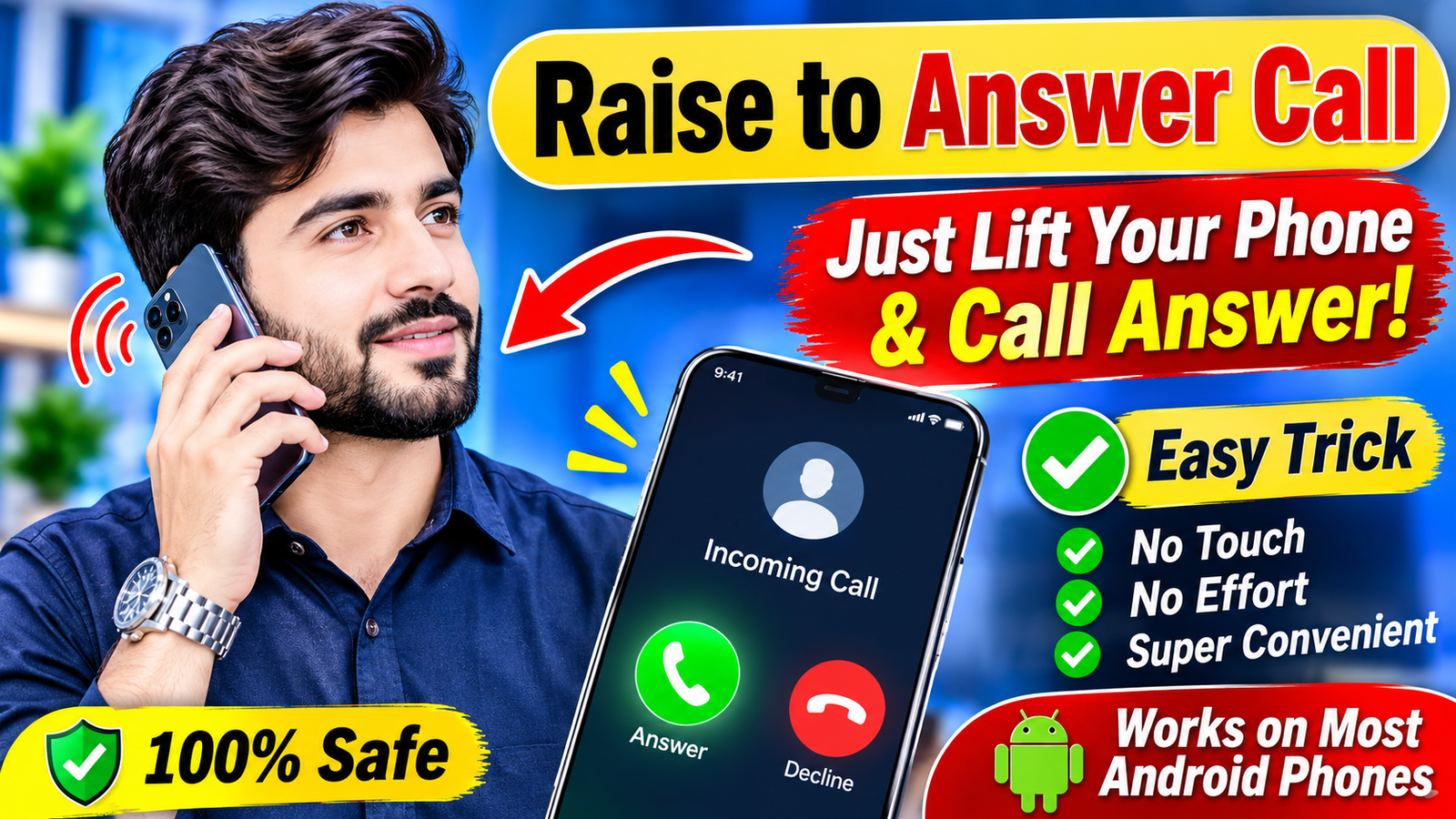
Many smartphones offer convenient features that make answering calls easier. One such feature is commonly known as Raise to Answer Call, which allows users on supported devices to answer incoming calls using a simple phone movement or gesture. Instead of manually tapping the answer button on the screen, users may be able to lift their phone and bring it closer to their ear to answer a call, depending on their device and settings.
This feature can make everyday phone usage more convenient and provide a smoother calling experience. In this guide, we will explain what Raise to Answer Call is, how it works, how to find it in your smartphone settings, and what you should know before using it.
What Is the Raise to Answer Call Feature?
Raise to Answer Call is a smartphone feature designed to make answering incoming calls easier. On supported smartphones, users may be able to answer a phone call by lifting their device and bringing it toward their ear, without manually pressing the answer button.
Normally, when someone calls you, your phone displays an incoming call screen with options such as Answer and Decline. You need to interact with the screen to answer the call. However, certain smartphones include gesture-based calling features that allow users to perform this action more conveniently.
Depending on the smartphone manufacturer and software version, this functionality may be available under different names, including:
- Raise to Answer
- Answer Calls with Gestures
- Motion Gestures
- Smart Answer
- Answering Gestures
The exact name and functionality may vary between Android smartphones. Some devices support answering calls through movement, while others offer alternative gestures or accessibility options.
How Does Raise to Answer Call Work?
Smartphones use different sensors and software technologies to recognize movements and interactions. Depending on the device, motion sensors, proximity sensors, and software-based gesture recognition may help detect when a user lifts or moves the phone.
When an incoming call arrives, the phone displays the caller information and available answering options. If a supported gesture feature is enabled, the smartphone may recognize a specific movement and respond accordingly.
For example, on supported devices, lifting the phone and bringing it toward your ear may trigger the call-answering action. This can reduce the need to touch the display manually.
However, not every smartphone uses the same technology or gesture. Some devices may require a specific movement, while others may offer a different method of answering calls. Therefore, it is important to check the available settings on your own smartphone before expecting this functionality.
How to Enable Raise to Answer Call on Your Smartphone
If your smartphone supports gesture-based call answering, you may be able to enable it through the device settings.
Follow these general steps to check whether the feature is available.
Step 1: Open Your Phone Settings
Unlock your smartphone and open the Settings application.
Settings is the main place where you can manage different smartphone functions, including display settings, sound, accessibility, privacy, gestures, and calling options.
Step 2: Search for Call or Gesture Settings
Inside Settings, look for sections such as:
- Call Settings
- Phone Settings
- Accessibility
- Additional Settings
- Motion and Gestures
- System Settings
The location of these options depends on the smartphone brand, Android version, and software interface.
Step 3: Use the Settings Search Bar
If you cannot find the option manually, use the search bar available at the top of your Settings application.
Try searching for the following terms:
- Raise to Answer
- Answer Calls
- Answering Gestures
- Call Gestures
- Motion Gestures
- Smart Answer
Searching these terms may help you locate the relevant setting if your smartphone supports it.
Step 4: Enable the Available Feature
If you find an option related to answering calls through gestures or movement, open it and enable it according to the instructions provided by your smartphone.
Some phones may provide additional options for answering calls, such as gestures, voice commands, accessibility controls, or automatic answering settings.
Choose the option that best suits your needs.
Step 5: Test the Feature
After enabling the setting, ask someone to call your phone.
When the incoming call appears, try lifting your phone and bringing it toward your ear. If your smartphone supports this particular gesture, the call may be answered automatically.
If nothing happens, check whether the feature is enabled correctly or whether your device supports a different gesture.
Is This Feature Available on Every Android Phone?
No, Raise to Answer Call is not available on every Android smartphone.
Android manufacturers customize their software and provide different features depending on the device model, operating system version, and hardware capabilities.
Some smartphones may include gesture-based answering options, while others may offer automatic call answering through Bluetooth devices, accessibility features, or specific phone applications.
Even smartphones from the same manufacturer may have different settings because of software updates or differences between models.
For this reason, the most reliable way to check availability is to search directly within your smartphone’s Settings application.
Why Is Raise to Answer Call Useful?
This feature can be useful in several everyday situations.
1. Convenient Call Answering
Instead of searching for the answer button on your screen, supported devices may allow you to answer calls through a simple movement.
This can make the calling experience feel faster and more convenient.
2. Helpful When Your Hands Are Busy
Sometimes you may be holding something, working at your desk, or performing another task when a phone call arrives.
A gesture-based answering option may make it easier to answer calls without needing to interact directly with the screen.
However, you should always make sure you can safely handle your phone before attempting to answer a call.
3. A More Convenient User Experience
Smartphone gestures are designed to simplify certain actions. Features such as lifting to wake the screen, double-tapping to wake, or using gestures for different functions can make a device easier to operate.
If your phone supports gesture-based call answering, it can be another useful addition to your everyday smartphone experience.
4. Less Dependence on Screen Touches
For users who prefer gesture-based controls, this feature may provide an alternative to manually tapping the screen every time a call arrives.
It can also be helpful in situations where touching the display is inconvenient, provided that the device supports the gesture and the phone is being handled safely.
What If the Feature Is Not Available on Your Phone?
If you search your smartphone settings and cannot find Raise to Answer Call, do not worry. It does not necessarily mean that your phone has a problem.
The feature may not be supported by your device, or it may be available under a different name.
You can explore other built-in calling options, such as:
- Accessibility features for answering calls.
- Bluetooth headset call controls.
- Voice commands supported by your phone.
- Automatic answering settings, where available.
- Alternative call-answering gestures supported by your device.
Always prefer built-in smartphone settings and official software features whenever possible.
Installing unknown applications simply to enable call gestures may introduce unnecessary permissions or privacy concerns. Before installing any application, check its developer, permissions, reviews, and privacy information.
Important Things to Know Before Using This Feature
Although gesture-based answering can be convenient, there are a few things worth keeping in mind.
First, the feature may not work on every smartphone. Availability depends on the device and its software.
Second, gestures can sometimes be recognized differently depending on how the phone is held or moved. If your phone does not respond as expected, you may need to use the normal on-screen answer button.
Third, automatic call answering and gesture-based call answering are not necessarily the same feature. Automatic answering may answer calls after a specific time or through a connected device, whereas gesture-based answering requires a particular user action.
Finally, answering a call does not automatically activate the speakerphone on every smartphone. Audio behavior depends on the device, calling application, and settings.
Conclusion
Raise to Answer Call is a convenient smartphone feature that may allow users to answer incoming calls by lifting their phone and bringing it closer to their ear, provided that their device supports this functionality.
It can make everyday calling easier, reduce the need for manually interacting with the screen, and provide a more convenient experience for people who prefer gesture-based controls.
To check whether your smartphone supports this feature, open Settings and search for terms such as Raise to Answer, Answer Calls, or Answering Gestures. If the option is available, enable it and test it with an incoming call.
Remember that smartphone features vary between manufacturers and models, so the exact steps may not be the same for every device.
By exploring the built-in settings of your smartphone, you can discover useful features that make your phone easier and more convenient to use every day.