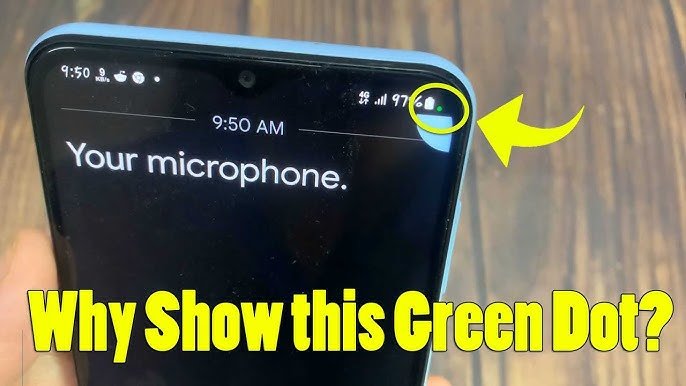
Have you noticed a small green dot on the right side of your mobile screen and wondered what it means or how to remove it? You are not alone. Many Android and iPhone users see a green indicator appear near the top of the screen and become concerned about whether an app is using their camera or microphone.
In most cases, the green dot is not a problem or a virus. It is a privacy indicator designed to let you know when an application is accessing your phone’s camera or microphone.
The exact meaning and the steps to remove the green dot can vary depending on your device, Android version, iPhone model, and manufacturer. This guide explains what the green dot means and how you can stop it from appearing.
What Does the Green Dot on a Mobile Phone Mean?
The green dot is generally a privacy indicator.
On many Android phones, a green indicator appears when an app is using the camera or microphone. On iPhones, the green indicator specifically means that an app is using the camera, while an orange indicator is used for microphone access.
The indicator is intentionally visible so that an application cannot secretly access these features without making you aware of it.
For example, you may see the green dot when:
- Opening the Camera app
- Making a video call
- Recording a video
- Using a social media camera
- Scanning a QR code
- Using an app that requires camera access
- Using certain voice or video communication features
If the dot disappears after you close the application, there is usually nothing to worry about.
Why Does the Green Dot Keep Appearing?
If the green dot stays visible even when you are not intentionally using your camera, an application may still have access to it.
Some common reasons include:
- An app is currently using the camera.
- A video-calling application is running in the background.
- Another app has permission to access the camera.
- A system feature is temporarily using the camera.
- An application may have a bug.
- Your phone’s privacy indicator may be showing recent camera activity.
The first thing you should do is identify which application is accessing the camera.
How to Remove the Green Dot on Android
The steps can vary between Samsung, Xiaomi, Redmi, Oppo, Vivo, OnePlus, Google Pixel, and other Android phones. However, the general process is similar.
Step 1: Check Which App Is Using the Camera
When the green indicator appears, swipe down from the top of your screen to open the notification or Quick Settings panel.
On supported Android versions, you may see a privacy notification indicating that an application is using the camera or microphone.
Tap the privacy indicator or the relevant notification to see more information.
This can help you identify the application responsible for the green dot.
Step 2: Close the App
If you recognize the application and do not need to use the camera, close it.
Open the recent apps screen and swipe the application away.
Wait a few seconds and check whether the green dot disappears.
If it disappears, the application was likely responsible for the indicator.
Step 3: Turn Off Camera Permission for an App
If you do not want a particular application to access your camera, you can remove its camera permission.
Open:
Settings → Privacy → Permission Manager → Camera
Depending on your phone, the menu may instead be called:
Settings → Apps → Permissions → Camera
You will see a list of applications that have requested camera access.
Select the application you do not want to access your camera and change its permission to Don’t allow.
Keep in mind that some applications may not work correctly if camera access is disabled.
How to Remove the Green Dot on Samsung Phones
Samsung Galaxy phones use privacy indicators to show when applications access sensitive features.
If you see the green indicator, swipe down from the top of the screen and look for the privacy notification.
You can also review camera permissions by going to:
Settings → Security and privacy → Permission manager → Camera
Select an application and choose the permission that suits you.
If an app does not need camera access, you can deny the permission.
Menu names may be slightly different depending on your Galaxy model and One UI version.
How to Remove the Green Dot on Xiaomi or Redmi Phones
On Xiaomi and Redmi devices, you can review application permissions through the Privacy or Apps settings.
Try:
Settings → Privacy protection → Permissions → Camera
You can also open the app’s information page and check its permissions.
If an application has camera access that you do not need, disable the permission.
Because Xiaomi’s menus can vary between MIUI and HyperOS versions, the exact names may be different on your phone.
How to Remove the Green Dot on iPhone
On an iPhone, the green dot has a specific meaning: an app is using the camera.
If you see the green dot unexpectedly, open Control Center by swiping down from the top-right corner of the screen.
Your iPhone may show information about which app recently used the camera.
You can then close the application if you do not need it.
Check Camera Permissions on iPhone
To review which applications can access your camera:
Settings → Privacy & Security → Camera
You will see a list of applications that have requested camera access.
If an application does not need your camera, turn its camera permission off.
This prevents that application from accessing the camera in the future unless you give permission again.
Can You Permanently Disable the Green Dot?
Generally, the green privacy indicator is a built-in security feature rather than an ordinary notification that you should simply turn off.
On modern phones, manufacturers intentionally use these indicators to tell users when sensitive hardware such as the camera is being accessed.
Therefore, instead of trying to hide the green dot, the better solution is to determine which application is accessing the camera and manage its permission.
Trying to disable or hide the privacy indicator can also reduce your awareness of camera activity.
What If the Green Dot Does Not Disappear?
If the green indicator remains after closing the application, try these troubleshooting steps.
Restart Your Phone
A simple restart can stop an application or background process that may still be accessing the camera.
Press and hold the power button and restart your device.
After the phone starts again, check whether the green dot is still visible.
Check Recently Installed Apps
Think about whether the problem started after installing a new application.
If you recently installed an app that uses the camera, review its permissions.
You can temporarily remove its camera permission and see whether the indicator stops appearing.
Update Your Phone
Software bugs can sometimes cause unusual behavior.
Check for available system updates through your phone’s software update settings.
Installing an official update may resolve problems related to privacy indicators or background applications.
Update Your Apps
Open your phone’s official app store and check for updates.
An outdated application may have a bug that causes it to continue using a feature longer than expected.
Check Camera Permissions
Review your complete camera permission list.
Remove camera access from applications that do not genuinely need it.
This is one of the best ways to control which applications can access your camera.
Is the Green Dot a Sign of a Virus?
Not necessarily.
The green dot itself is normally a privacy feature provided by the operating system. Seeing it does not automatically mean that your phone has a virus.
However, if an unfamiliar application repeatedly accesses your camera without an obvious reason, it is worth investigating.
Check:
- Which app recently used the camera
- Which applications have camera permission
- Whether you recognize all installed applications
- Whether the issue started after installing a new app
- Whether your phone and apps are fully updated
If you find an application you do not recognize, research it before deciding whether to keep it.
How to Prevent Unwanted Camera Access
You can improve your phone’s privacy by regularly reviewing application permissions.
Only give camera access to applications that genuinely require it.
For example, a video-calling application may need camera permission, while a simple calculator usually does not.
You should also avoid installing applications from unknown or unreliable sources.
Keep your operating system and applications updated, and remove apps you no longer use.
Green Dot vs. Other Privacy Indicators
The meaning of indicators depends on your device.
On many Android devices, a green indicator can notify you that the camera or microphone is being accessed.
On iPhone:
- Green dot: Camera is being used, sometimes together with microphone access.
- Orange dot: Microphone is being used without the camera.
These indicators are designed to make camera and microphone activity more visible to the user.
Frequently Asked Questions
Why is there a green dot on the top right of my phone?
The green dot is usually a privacy indicator showing that an application is accessing the camera or, on some Android devices, the camera or microphone.
How do I find the app causing the green dot?
On supported devices, tap or interact with the privacy indicator or open the privacy information from the notification/Quick Settings panel. You can also review your camera permissions in Settings.
Can I remove the green dot without disabling my camera?
You normally do not need to disable your entire camera. Instead, identify the application using it and close the app or remove its camera permission.
Is the green dot dangerous?
The green dot itself is generally not dangerous. It is a privacy feature designed to inform you about camera or microphone access.
Why does the green dot appear when I am not using the camera?
A background application, system feature, or recently used application may be accessing the camera. Check the privacy indicator and your camera permissions to identify the cause.
Does the green dot mean someone is watching me?
No. The indicator by itself does not mean that someone is watching you. It indicates that the device’s camera-related privacy feature has detected camera access. If an unfamiliar app is responsible, review its permissions and remove access if appropriate.
Final Thoughts
The green dot on the right side of your mobile screen is usually a privacy indicator, not an error. It is designed to tell you when an application is accessing your camera or, depending on the device, another sensitive feature.
If you want to remove it, first identify the application responsible. Close the app or remove its camera permission if the application does not need access. Restarting the phone and keeping your software updated can also help if the indicator appears unexpectedly.
Most importantly, you should not simply try to hide the green dot. It exists to give you greater control and awareness over your phone’s privacy.
Disclaimer: This guide is for informational purposes only. Settings and features may vary depending on your device model and software version. Always review app permissions carefully before making changes.