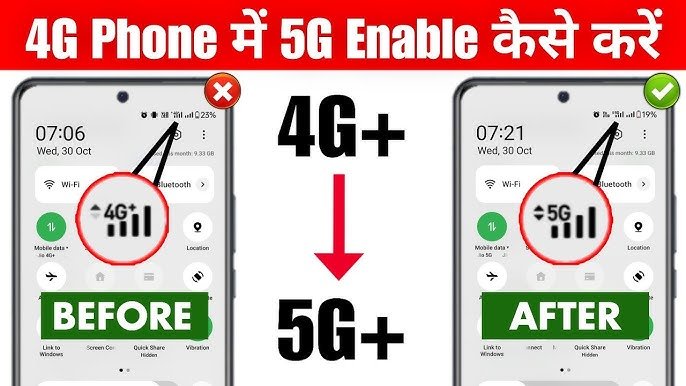
Want to know how to switch from 4G to 5G on Android? If your smartphone and mobile network support 5G, you can usually change the preferred network type from your phone’s Settings app.
5G can provide faster mobile data speeds, lower latency, and improved performance in areas where compatible coverage is available. However, simply changing the network setting does not guarantee a 5G connection. Your phone, SIM, mobile plan, carrier, and location all need to support 5G.
In this guide, we’ll explain how to enable 5G on Android, change network preferences, troubleshoot common problems, and check whether your phone is actually connected to a 5G network.
What Is 5G on Android?
5G is the fifth generation of mobile network technology. Compared with 4G LTE, 5G can offer higher speeds and lower latency under suitable network conditions.
The actual experience depends on factors such as:
- Your smartphone
- Mobile carrier
- SIM or eSIM
- 5G plan
- Network coverage
- Signal strength
- Network congestion
Not every 5G connection will deliver the same speed.
Check If Your Android Phone Supports 5G
Before changing your network settings, confirm that your phone has 5G hardware.
Check Your Phone Specifications
Search for your exact phone model on the manufacturer’s website and look for information about network connectivity.
If the specifications mention 5G, your device should support compatible 5G networks.
Check Your Mobile Plan
Your carrier may require a specific plan or activation for 5G access.
Contact your carrier or check its official app or website if you are unsure whether 5G is enabled on your account.
How to Switch from 4G to 5G on Android
The exact menu names can vary between Samsung, Xiaomi, OnePlus, Google Pixel, OPPO, vivo, and other Android phones.
However, the general process is similar.
Step 1: Open Settings
Open the Settings app on your Android phone.
Step 2: Open Mobile Network Settings
Look for an option such as:
- Network & internet
- Connections
- Mobile network
- SIM cards & mobile networks
- Cellular network
Tap the relevant option.
Step 3: Select Your SIM
If your phone has two SIM cards, select the SIM you use for mobile data.
Step 4: Open Preferred Network Type
Look for an option such as:
Preferred network type
or:
Network mode
Step 5: Select a 5G Option
Depending on your phone, you may see options such as:
- 5G/4G/3G/2G
- 5G/LTE
- 5G Auto
- 5G preferred
Choose the 5G-compatible option available on your device.
Step 6: Check the Network Indicator
Return to the home screen and look at the network indicator.
If 5G coverage is available and your carrier allows it, you may see 5G instead of 4G or LTE.
How to Enable 5G on Samsung Galaxy
On many Samsung Galaxy phones, you can find the network mode under a menu similar to:
Settings → Connections → Mobile networks → Network mode
If your device and carrier support 5G, select an option that includes 5G.
The exact menu can vary depending on your Galaxy model and One UI version.
How to Enable 5G on Xiaomi, Redmi, and POCO
On many Xiaomi, Redmi, and POCO devices, network settings may be located under:
Settings → SIM cards & mobile networks → Select SIM → Preferred network type
Choose the available option that includes 5G.
The exact menu can differ between MIUI, HyperOS, and individual device models.
How to Enable 5G on OnePlus
On many OnePlus phones, network settings can generally be found through:
Settings → Mobile network → Select SIM → Preferred network type
Choose a 5G-compatible option if it is available.
How to Enable 5G on Google Pixel
On supported Pixel devices, network settings may be found under:
Settings → Network & internet → SIMs → Preferred network type
Select the available 5G option.
What If There Is No 5G Option?
If you cannot find a 5G network option, there are several possible explanations.
Your Phone May Not Support 5G
Some Android phones are 4G-only.
Check your exact model’s specifications.
Your Carrier May Not Support 5G
5G availability depends on your mobile network provider and location.
Your Plan May Not Include 5G
Some carriers require a compatible package before 5G access is enabled.
Your Phone Variant May Differ
The same smartphone name can have different regional variants with different network capabilities.
Software or Carrier Settings
In some cases, updating your phone or carrier settings may be necessary.
Why Is My Android Phone Still Showing 4G?
Selecting 5G in Settings does not mean your phone will always display 5G.
Your phone may automatically switch between 5G and 4G depending on coverage and network conditions.
Check Your Location
Move to an area known to have 5G coverage.
Buildings, underground locations, rural areas, and other obstacles can affect mobile signals.
Turn Airplane Mode On and Off
Temporarily enable Airplane Mode, wait a few seconds, and disable it again.
This can cause the phone to reconnect to the mobile network.
Restart Your Phone
A normal restart can resolve temporary network connection problems.
Check Your SIM
Make sure the correct SIM is selected for mobile data, especially on dual-SIM phones.
Does 5G Use More Battery Than 4G?
5G can sometimes consume more battery than 4G, although the difference varies significantly by device, network, signal conditions, and how the phone uses 5G.
If battery life is more important than maximum network speed, some phones allow you to select 4G/LTE instead.
How to Switch Back From 5G to 4G
You can usually change the network preference back to 4G through the same settings.
Go to:
Settings → Mobile Network → Preferred Network Type
Then select an option such as:
4G/LTE
or a setting that prioritizes LTE.
This can be useful if 5G coverage is weak or if you want to reduce battery consumption.
5G vs 4G: Which Should You Use?
Both technologies have advantages.
| Feature | 4G LTE | 5G |
|---|---|---|
| Speed | Fast | Potentially much faster |
| Latency | Good | Potentially lower |
| Coverage | Usually broader | Depends on local rollout |
| Battery impact | Often lower | Can vary |
| Availability | Widely available | Depends on carrier and location |
For everyday browsing, messaging, and social media, 4G may already be sufficient.
For large downloads, high-quality streaming, cloud applications, and other demanding tasks, 5G can provide advantages when coverage and network conditions are good.
Tips to Get Better 5G Performance
Keep Your Phone Updated
Install official system updates when available.
Use a Compatible SIM
Make sure your carrier provides a SIM or eSIM compatible with its 5G service.
Check Network Coverage
5G availability can vary from one area to another.
Avoid Blocking the Antennas
Holding a phone in certain ways can sometimes affect signal quality, although modern phones are designed to minimize this effect.
Test in Different Locations
If 5G is slow in one location, try another area with stronger coverage.
Frequently Asked Questions
How do I switch my Android phone from 4G to 5G?
Open Settings → Mobile Network/SIM → Preferred Network Type or Network Mode, then select an option that includes 5G.
Why can’t I see the 5G option?
Your phone may not support 5G, your carrier may not provide 5G in your area, your plan may not include 5G, or your device variant may have different network support.
Does changing 4G to 5G cost money?
Changing the setting on your phone does not itself charge a fee. However, your carrier may require a compatible 5G plan.
Will 5G work with my old SIM?
It depends on your carrier and SIM. Some older SIMs may work with 5G, while others may need replacement or activation. Check with your carrier.
Why does my phone switch from 5G to 4G?
Android phones can automatically switch between network technologies based on coverage, signal quality, network availability, and device settings.
Can I force my Android phone to use only 5G?
Some devices provide network settings that allow stronger 5G preference, while others manage the connection automatically. Avoid changing hidden network settings unless you understand their purpose.
Final Thoughts
Switching from 4G to 5G on Android is usually straightforward when your smartphone, SIM, mobile plan, and carrier support 5G.
Open your mobile network settings, select the correct SIM, find Preferred Network Type or Network Mode, and choose the available option that includes 5G.
If your phone continues showing 4G, don’t assume something is broken. 5G availability depends on coverage and network conditions, and your device may automatically return to 4G when a 5G signal isn’t available.
Disclaimer
This article is for informational purposes only. Network settings and menu names vary by Android version, smartphone manufacturer, carrier, and device model. 5G availability, speed, and coverage depend on your mobile network provider and location. Always check your carrier’s current 5G requirements and coverage information.