Introduction
Finding a reliable internet connection can sometimes be difficult, especially when you are traveling, working outside your home, studying in a public place, or trying to save mobile data. A WiFi hotspot map can make this process easier by showing available WiFi locations around you. One popular option is Instabridge, a WiFi-sharing platform designed to help users discover internet connections in different locations.
The Instabridge WiFi hotspot map can be useful when you need to find nearby WiFi without manually searching every café, hotel, restaurant, or public location. Depending on the area, the service can display available hotspots and provide information that helps users decide where to go for an internet connection.
This complete guide explains what the Instabridge WiFi hotspot map is, how it works, how to find nearby WiFi, how to use it safely, its main features and benefits, and important things you should know before connecting to public wireless networks.
What Is Instabridge WiFi Hotspot Map?
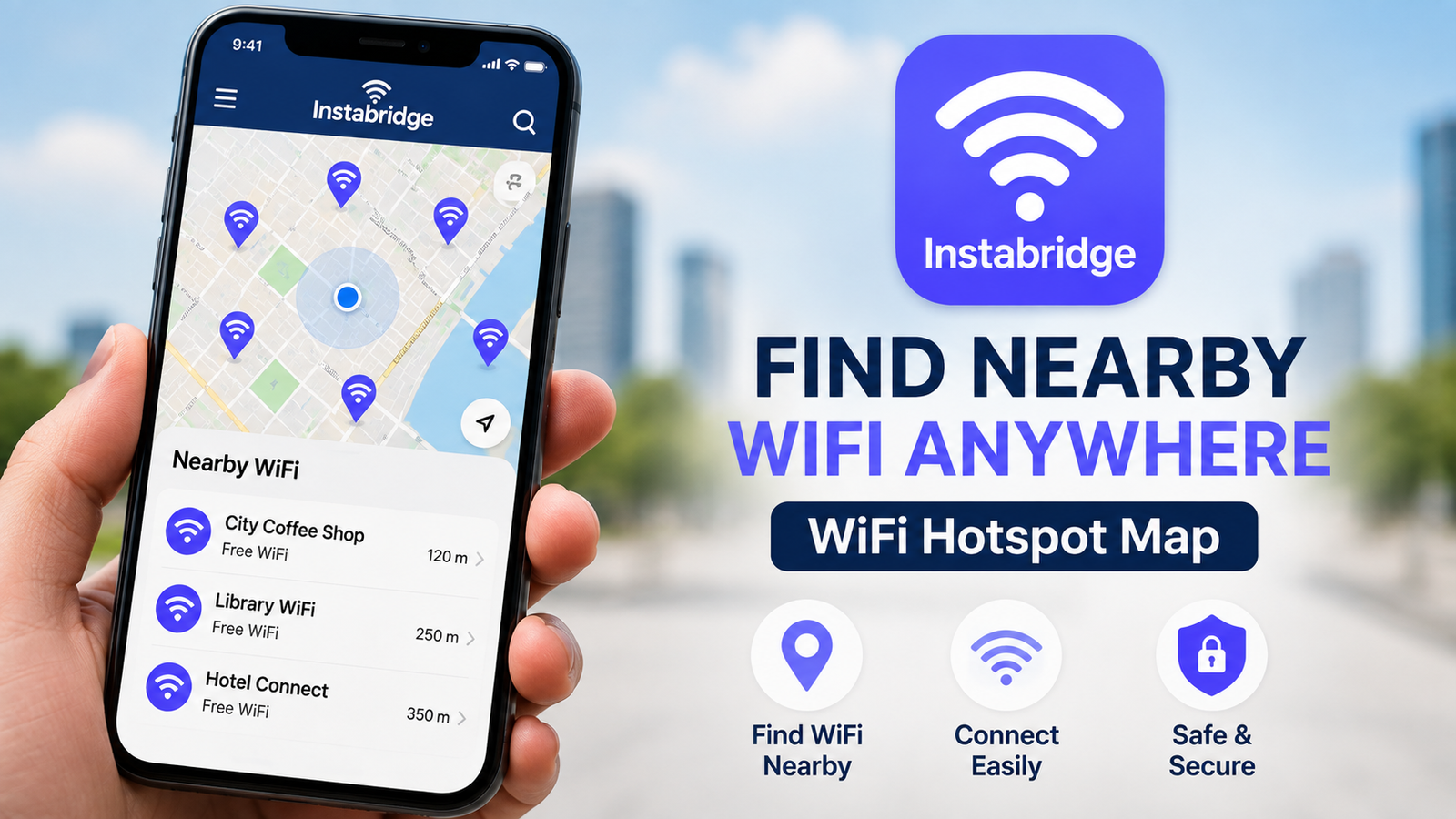
Instabridge is a WiFi-sharing platform that helps users discover WiFi networks and internet hotspots in different locations. Its hotspot map is designed to make finding available wireless internet connections easier.
Instead of walking around and checking networks manually, users can use a map-based interface to explore WiFi locations around their current position or another selected area.
The availability and information shown on the map can vary depending on location, network availability, and the information provided through the Instabridge service.
The main idea is simple: open the WiFi map, explore nearby hotspots, select an available location, and follow the instructions provided by the service or network owner.
How Does the Instabridge WiFi Map Work?
The Instabridge WiFi map uses location-based information to help users discover WiFi hotspots in their surrounding area. When location access is available, the application can identify the user’s approximate position and display nearby WiFi locations.
The process generally involves several steps:
- Open Instabridge on your smartphone.
- Allow location access if you want to search around your current position.
- Open the WiFi map or hotspot discovery feature.
- Explore available WiFi locations around you.
- Select a hotspot that appears suitable.
- Check the available network information.
- Follow the legitimate connection instructions.
- Move closer to the hotspot if the signal is weak.
- Disconnect when you no longer need the network.
The exact interface and available features can change as the application receives updates, so users should follow the options displayed in the current version of the app.
How to Use Instabridge WiFi Hotspot Map
Using a WiFi hotspot map is generally straightforward, even for beginners.
Open the Instabridge App
Start by installing and opening the official Instabridge application on your smartphone. Make sure you download the app from a trusted app store and check that you are using the legitimate application.
Enable Location Access
A WiFi map works more effectively when it can determine your location. If Instabridge requests location permission, review the permission and allow it if you are comfortable with the app using your location for hotspot discovery.
You can review or change location permissions later through your phone’s privacy settings.
Find the WiFi Map
Navigate to the WiFi discovery or map feature available in the app. You should see WiFi hotspots represented around your current location or the area you are exploring.
Explore Nearby Hotspots
Look at the available hotspots and choose a location that is convenient for you. A hotspot inside a café, hotel, public area, or another legitimate location may be more practical than one that is far away.
Check the Available Information
Before traveling to a hotspot, review any information shown by the app. Depending on the location, you may see details about the network or its general location.
Remember that map information may not always be perfectly current. A network can change its password, move, become unavailable, or stop providing public access.
Connect Through the Legitimate Method
Only connect to networks that you are authorized to use. If a location requires a password, ask the business or network owner for access instead of attempting to bypass the security.
Never try to defeat WiFi encryption, guess passwords, or access a network without permission.
Features of Instabridge WiFi
Instabridge is designed around convenient WiFi discovery and internet access. Depending on the current version and region, its features may include:
- WiFi hotspot discovery.
- Map-based WiFi searching.
- Nearby hotspot information.
- Location-based WiFi recommendations.
- Community-based network information.
- WiFi connection assistance.
- Mobile data-saving opportunities.
- Coverage across different locations.
- Easy-to-use interface.
- Support for travelers and mobile users.
The exact features may vary according to the app version, operating system, location, and available networks.
Benefits of Using a WiFi Hotspot Map
A WiFi map can be useful in many everyday situations.
Save Mobile Data
When a trusted WiFi connection is available, you may be able to reduce your mobile data usage. This can be especially helpful when your cellular data package is limited.
Find Internet While Traveling
Travelers can use WiFi hotspot maps to identify potential internet locations before spending time searching manually.
Work Away From Home
Remote workers and students can use hotspot discovery tools to find cafés, public spaces, or other legitimate locations where internet access may be available.
Stay Connected During Emergencies
Having information about nearby internet access can be useful when mobile data is unavailable or limited. However, important communication should always rely on a connection you can trust.
Reduce Roaming Data Costs
People traveling internationally may use legitimate WiFi networks to reduce reliance on expensive roaming data plans.
Best Places to Find Public WiFi
The usefulness of a WiFi hotspot map depends heavily on your location. In many areas, common places with legitimate WiFi access include:
- Cafés and coffee shops.
- Restaurants.
- Hotels.
- Libraries.
- Airports.
- Shopping centers.
- Universities.
- Coworking spaces.
- Public transportation facilities.
- Community centers.
Always check the establishment’s rules before connecting to its network.
How to Stay Safe on Public WiFi
Finding WiFi is only one part of the process. Security is equally important.
Public WiFi can expose users to privacy and security risks if the network is poorly secured or controlled by an unknown party. You should therefore take precautions whenever connecting outside your home or workplace.
- Connect only to networks you recognize or are authorized to use.
- Confirm the network name with the business when possible.
- Avoid entering sensitive information on suspicious websites.
- Use HTTPS websites whenever possible.
- Keep your operating system updated.
- Keep your browser updated.
- Disable automatic WiFi connection when you do not need it.
- Avoid downloading unknown files while connected to an unfamiliar network.
- Use a trusted VPN when appropriate.
- Disconnect from public WiFi after finishing your session.
What to Avoid When Using WiFi Hotspot Maps
A hotspot map should be used as a discovery tool, not as a way to bypass network security.
Avoid these activities:
- Guessing WiFi passwords.
- Attempting to access protected networks without permission.
- Using hacking tools to bypass authentication.
- Downloading suspicious WiFi-related applications.
- Installing modified versions of the app.
- Sharing private account credentials.
- Entering banking information on questionable networks.
- Connecting automatically to every available network.
- Trusting every hotspot shown on an online map.
The safest approach is to use networks that are openly provided for customers, guests, students, travelers, or other authorized users.
Tips for Getting a Better WiFi Connection
Even when you find a hotspot, the connection may not always be strong. Several simple techniques can improve your experience.
- Move closer to the WiFi access point.
- Remove physical obstacles where possible.
- Avoid crowded areas if the network is overloaded.
- Close unnecessary background applications.
- Pause large downloads while browsing.
- Restart WiFi if the connection becomes unstable.
- Forget and reconnect to a network if appropriate.
- Check whether your device has received the correct network settings.
- Try another authorized hotspot if the current connection is too slow.
Instabridge WiFi Map for Travelers
Traveling is one of the situations where a WiFi map can be particularly useful. Before visiting a new city, travelers may want to know where internet access could be available.
A WiFi hotspot map can help identify potential locations near:
- Hotels.
- Airports.
- Tourist areas.
- Restaurants.
- Shopping districts.
- Public transportation areas.
- Cafés.
- Workspaces.
However, travelers should not depend entirely on public WiFi. It is a good idea to maintain a mobile data connection, download important maps for offline use, and keep essential travel information available on the device.
Using Instabridge to Reduce Mobile Data Usage
Mobile data can become expensive or limited, especially when watching videos, downloading large files, or using navigation services for extended periods.
Using legitimate WiFi can reduce cellular data consumption. You can make better use of available WiFi by downloading large files, updating applications, or synchronizing non-sensitive content when connected to a trusted network.
However, do not connect to an unknown network simply to save a small amount of mobile data. Your privacy and account security are more important than reducing a few megabytes of cellular usage.
Troubleshooting Instabridge WiFi Map Problems
Sometimes the hotspot map may not work as expected. Common problems include unavailable networks, incorrect location information, weak WiFi signals, or outdated hotspot information.
Try these basic solutions:
- Check your internet connection.
- Turn location services on if needed.
- Restart the application.
- Update Instabridge to the latest available version.
- Restart your smartphone.
- Move to a different location.
- Check whether the hotspot is still available.
- Confirm network information with the location owner.
- Try another legitimate hotspot.
If the problem continues, check the application’s official support resources for the latest troubleshooting information.
Alternatives to Instabridge WiFi
- WiFi Map – A popular WiFi discovery platform that helps users explore available wireless hotspots in different locations.
- Wiman – A WiFi-sharing service focused on helping users discover wireless networks and hotspots.
- Google Maps – Useful for finding cafés, restaurants, libraries, hotels, and other places that may offer WiFi.
- OpenSignal – Provides connectivity-related information that can help users understand mobile and network availability.
- Local Business WiFi – Many cafés, hotels, libraries, and public venues provide their own authorized WiFi for customers or visitors.
Important Privacy Considerations
Location-based applications can process information related to your location and device. Before using any WiFi discovery service, review its privacy policy and the permissions requested by the application.
Only provide permissions that are necessary for the features you want to use. You can also review application permissions through your smartphone’s settings.
Be particularly careful when an app requests access that appears unrelated to its primary function.
Good privacy habits include:
- Reviewing app permissions.
- Keeping location access under control.
- Updating applications regularly.
- Using strong account passwords.
- Enabling two-factor authentication where available.
- Removing applications you no longer use.
- Avoiding unofficial APK files.
- Checking privacy settings periodically.
Why a WiFi Map May Not Always Be Accurate
It is important to understand that a WiFi hotspot map is not a guarantee that every listed network will be available at the moment you arrive.
WiFi information can change for many reasons:
- A business may change its WiFi password.
- A hotspot may be temporarily offline.
- A network may have been removed.
- The location may have changed its internet provider.
- Community-provided information may become outdated.
- The WiFi signal may not reach the exact location shown on the map.
- The network may have reached its device limit.
Therefore, treat hotspot maps as helpful guides rather than guaranteed real-time availability databases.
Conclusion
The Instabridge WiFi hotspot map can be a useful tool for discovering nearby WiFi when you need internet access outside your home or workplace. Its map-based approach makes it easier to explore potential hotspots and can help travelers, students, remote workers, and mobile users reduce unnecessary cellular data usage.
However, convenience should never come at the expense of security. Always use WiFi networks that you are authorized to access, confirm network details when possible, protect sensitive accounts, and avoid websites or applications that promise unauthorized access to secured networks.
For the best experience, combine a WiFi discovery app such as Instabridge with good cybersecurity habits, updated software, and a backup mobile data connection. This gives you a safer and more reliable way to stay connected wherever you go.
Disclaimer
This article is provided for educational and informational purposes only. It explains how to discover and use legitimate WiFi hotspots through publicly available or authorized connections. It does not encourage unauthorized access, password bypassing, hacking, or interference with protected networks. Always obtain permission before connecting to a private WiFi network and follow applicable laws and network rules.