Is your phone speaker suddenly producing very low sound even when the volume is turned all the way up? Low speaker volume can be frustrating, especially when you are watching videos, listening to music, receiving calls, or using your phone without headphones.
Fortunately, low speaker volume does not always mean that your phone’s speaker is damaged. The problem can be caused by incorrect volume settings, blocked speaker openings, software glitches, connected Bluetooth devices, or individual app settings.
In this guide, we’ll explain the most common reasons why your phone speaker sounds too low and show you several simple ways to improve the sound.
Why Is My Phone Speaker So Quiet?
There are several possible reasons for low speaker volume. Some of the most common include:
- Media volume is turned down
- Speaker openings are blocked by dust
- Bluetooth headphones or speakers are connected
- An app has its own volume settings
- Sound settings have changed
- Your phone has a temporary software problem
- The speaker is partially blocked by a case or screen protector
- The audio file itself has low volume
- The speaker may have suffered physical or liquid damage
Before assuming that your phone has a hardware problem, try the basic solutions below.
1. Turn Up the Media Volume
The first thing to check is your phone’s media volume.
Press the Volume Up button while playing a video or song. Make sure the media volume—not just the ringtone volume—is increased.
On many Android phones, pressing the volume button opens a volume panel where you can adjust different sound levels.
On an iPhone, use the physical volume buttons or the volume slider in Control Center while media is playing.
Sometimes users increase the ringtone volume but leave the media volume low.
2. Check the Volume Settings
Open your phone’s sound settings and check all available volume controls.
Depending on your device, you may see separate controls for:
- Media
- Ringtone
- Notifications
- Alarms
- Calls
- System sounds
Make sure the relevant volume level is high enough.
Some phones also include additional sound options that can affect how loud the speaker feels.
3. Disconnect Bluetooth Devices
Your phone may be sending sound to another device instead of its built-in speaker.
For example, your phone could still be connected to:
- Wireless earbuds
- Bluetooth headphones
- A smart speaker
- A car audio system
- Another Bluetooth accessory
Open your Bluetooth settings and temporarily turn Bluetooth off.
Then play a video or song again.
If the sound returns to normal, the Bluetooth connection was likely the reason.
4. Remove Your Phone Case
A thick or poorly designed phone case can partially cover the speaker openings.
Remove the case and test the speaker again.
If the sound becomes noticeably louder, the case may be blocking part of the speaker.
Choose a case that has properly aligned openings around the phone’s speakers.
5. Clean the Speaker Carefully
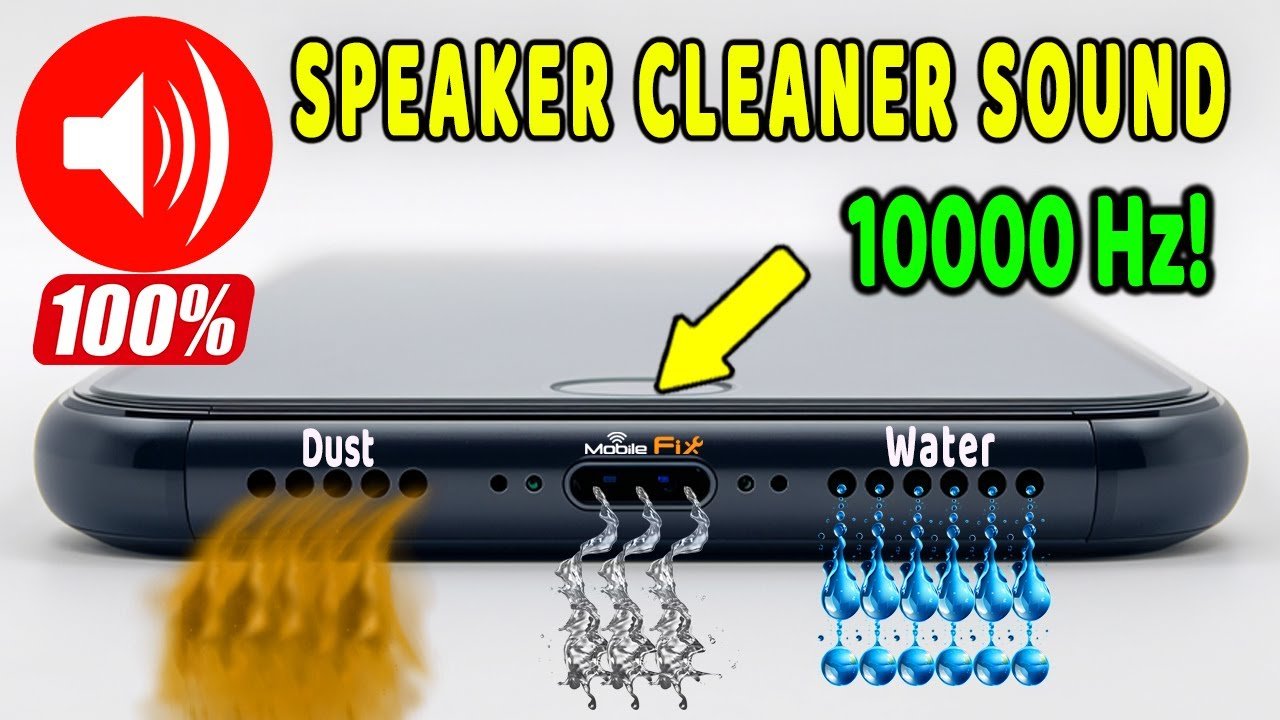
Dust, lint, and other small particles can collect around speaker openings over time.
A blocked speaker grille can make the sound seem quieter or muffled.
You can gently clean the outside of the speaker area using a soft, dry brush.
Avoid pushing objects into the speaker openings. Do not use sharp tools, excessive pressure, or liquids because they can damage the speaker.
If your phone has recently been exposed to water, allow it to dry according to the manufacturer’s recommendations before testing the speaker again.
6. Restart Your Phone
A simple restart can fix temporary software problems affecting audio.
Save anything you are working on, then restart your phone.
After it turns back on, play a video or music file and check the speaker volume.
If the problem was caused by a temporary software glitch, the sound may return to normal after restarting.
7. Check the App’s Volume
Sometimes the problem is limited to one particular application.
For example, your phone may sound normal when playing music but very quiet when watching videos in another app.
Test several different sources:
- Music
- YouTube or another video service
- A ringtone
- A saved video
- A voice recording
If only one application has low volume, the problem may be related to that app rather than your phone’s speaker.
Check the app’s own volume controls and make sure it is updated.
8. Check Audio Balance Settings
Some phones include left-right audio balance controls.
If the balance is moved heavily toward one side, the overall sound may appear unusually quiet, especially if your phone has multiple speakers.
Look under your phone’s accessibility or audio settings for options such as:
Audio Balance
Left/Right Balance
Mono Audio
Make sure the balance is positioned correctly.
The exact location of these settings varies between Android phones and iPhones.
9. Turn Off Audio Effects Temporarily
Many smartphones provide sound enhancement features.
Depending on your phone, these may include:
- Equalizer
- Dolby Atmos
- Sound enhancement
- Bass boost
- Spatial audio
- Adapt Sound
- Audio effects
Incorrect settings can sometimes make audio sound unusual or quieter.
Try temporarily turning off additional sound effects and test the speaker again.
If the sound improves, you can enable the features one at a time to determine which setting works best.
10. Update Your Phone Software
Software updates can fix bugs and improve compatibility with hardware features.
Open your phone’s system update settings and check whether a new update is available.
If an update is available, install it using the manufacturer’s official update process.
Make sure your phone has sufficient battery and storage before starting a major system update.
11. Check Whether Headphone Mode Is Stuck
In some situations, a phone may behave as if headphones are connected even after they have been disconnected.
This can cause sound to be routed incorrectly.
If you recently used wired headphones or another audio accessory, disconnect them properly and restart the phone.
For phones with a headphone jack, check that the port is clean and free from debris.
For USB-C audio accessories, disconnect the accessory and test the speaker again.
12. Test the Speaker With Different Audio
Do not rely on only one song or video when testing your speaker.
Some recordings are naturally quieter than others.
Try several different types of audio, such as:
- A ringtone
- A YouTube video
- A music track
- A recorded voice message
- A system notification
If everything sounds quiet, the issue is more likely related to the phone’s settings, software, or hardware.
If only one file is quiet, the problem may be with that particular recording.
13. Check for Water or Moisture
Water can temporarily affect speaker performance.
If your phone was recently exposed to rain, splashes, or another source of moisture, the speaker may sound muffled.
Do not insert objects into the speaker or use excessive heat to dry the phone.
Follow your phone manufacturer’s recommended drying procedure.
If the sound remains abnormal after the phone has had enough time to dry, professional inspection may be necessary.
14. Try Safe Mode on Android
If you recently installed an application and the speaker problem started afterward, a third-party app could potentially be interfering with audio.
Some Android phones offer Safe Mode, which starts the device with most third-party applications disabled.
If the speaker works normally in Safe Mode, a recently installed or updated app may be contributing to the problem.
The exact method for entering Safe Mode varies by manufacturer, so use the instructions appropriate for your phone model.
15. Check Whether the Speaker Is Damaged
If none of the software solutions work, the speaker itself may have a hardware problem.
Possible causes include:
- Physical impact
- Water damage
- A damaged speaker component
- Internal hardware failure
- Long-term wear
- Debris inside the speaker
If the phone has been dropped or exposed to liquid and the sound remains unusually low, consider having it inspected by a qualified repair professional.
Phone Speaker Low Volume During Calls
If the problem occurs only during phone calls, the issue may involve the earpiece speaker rather than the main media speaker.
Try increasing the call volume while you are actually on a call.
Also check whether the small earpiece opening is blocked by dust or a screen protector.
If media sounds normal but calls remain extremely quiet, the earpiece may need cleaning or professional inspection.
Phone Speaker Sounds Muffled After Cleaning
If you cleaned the speaker and it still sounds muffled, avoid repeatedly brushing or pressing the speaker grille.
The issue could be caused by moisture, debris underneath the grille, or hardware damage.
Give the phone time to dry if it was exposed to moisture. If the problem continues, professional assistance is safer than attempting to open the device yourself.
When Should You Get Your Phone Repaired?
You should consider professional repair if:
- The speaker remains extremely quiet after troubleshooting
- The phone was recently dropped
- The phone was exposed to water
- The sound is distorted or crackling
- One speaker works while another does not
- The issue occurs across all apps
- The speaker stops producing sound completely
Before paying for a repair, make sure you have tested the basic settings, Bluetooth connection, case, and speaker opening.
Frequently Asked Questions
Why is my phone speaker suddenly so quiet?
A sudden reduction in volume can be caused by a low media-volume setting, Bluetooth connection, blocked speaker opening, software issue, or hardware problem.
How can I make my phone speaker louder?
Start by increasing the media volume, disconnecting Bluetooth devices, removing the phone case, cleaning the speaker carefully, and checking your phone’s audio settings.
Why is my phone loud with headphones but quiet without them?
If headphones sound normal but the built-in speaker is quiet, the issue may be related to the phone’s speaker, speaker opening, or audio settings.
Can dust make my phone speaker quiet?
Yes. Dust and lint around the speaker grille can reduce sound output and make audio appear muffled.
Does restarting a phone fix low speaker volume?
It can. Restarting the phone may resolve temporary software or audio-processing problems.
Should I use a pin to clean my phone speaker?
No. Sharp objects can damage the speaker grille or internal components. Use a soft, dry brush and clean gently.
Final Thoughts
A phone speaker that sounds too low does not necessarily mean that the speaker is broken. In many cases, the problem can be fixed by checking the media volume, disconnecting Bluetooth devices, removing a case, cleaning the speaker carefully, or restarting the phone.
If the problem continues across different apps and audio sources, especially after a drop or exposure to water, the speaker may have a hardware issue. In that situation, professional inspection is the safest option.
Get Now
Disclaimer
This article is for informational purposes only. Settings and features may vary depending on your device model and software version. Always follow your phone manufacturer’s recommendations when troubleshooting or cleaning your device.