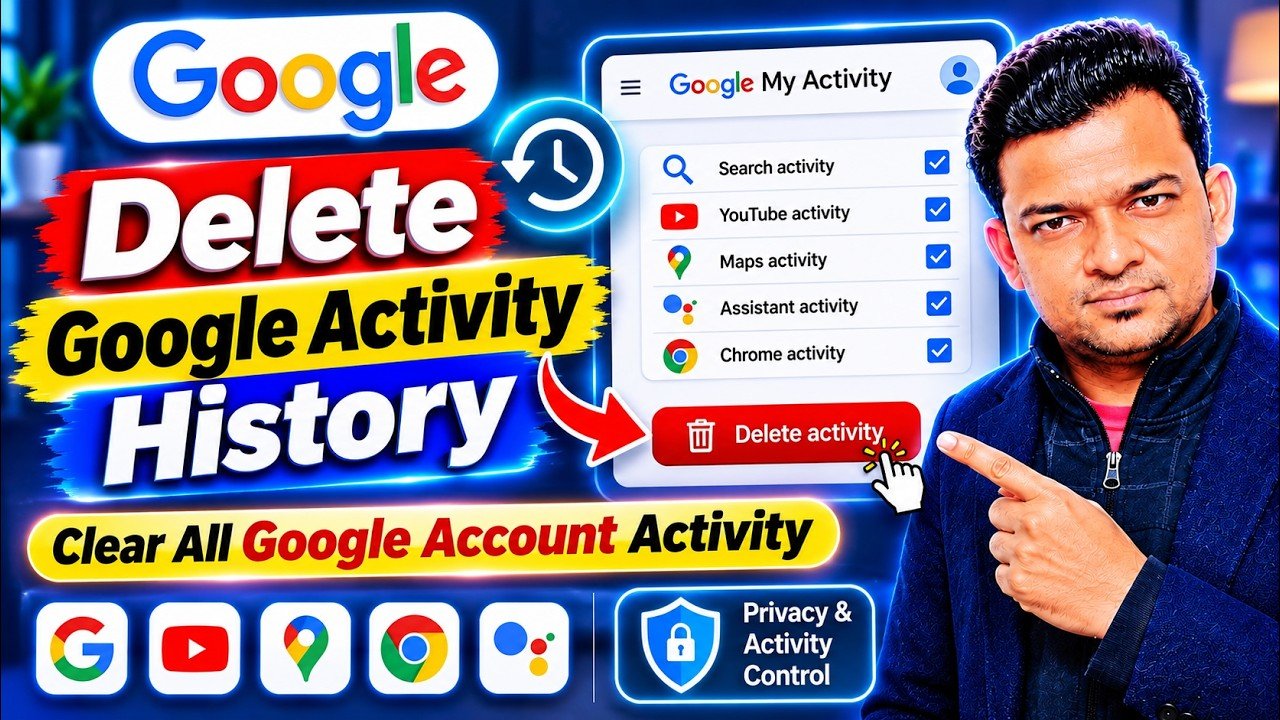
Google offers several useful services that help people search for information, watch videos, browse websites, use apps, and manage their daily online activities. When you use these services while signed in to your Google Account, some of your activity may be saved to your account.
If you want to review your previous searches, check which Google services you have used, or remove activity you no longer want to keep, Google My Activity is a helpful place to start.
With Google My Activity, users can review saved activity, search for specific records, filter information by date or product, and delete selected items or activity from a particular period. It also provides settings that let users control what activity Google saves in the future.
In this guide, you will learn how to check your Google activity, clear your search history, delete individual activities, and manage your activity-saving preferences.
What Is Google My Activity?
Google My Activity is a dashboard connected to your Google Account that lets you review certain activities saved while using Google services.
Depending on your account settings, it may contain information about searches, websites, apps, YouTube activity, and other interactions with supported Google services.
Rather than searching through different apps to find your previous activity, you can use the My Activity page to review much of this information in one place.
The dashboard can help users:
- Review their previous Google searches.
- Find saved activity from different dates.
- Check activity associated with supported Google services.
- Delete individual activity records.
- Remove activity from a selected period.
- Manage settings for future activity collection.
Not every action or service is necessarily recorded in My Activity. The information available depends on your Google Account settings, the services you use, and whether activity-saving features are enabled.
How to Check My Google Activity
Checking your saved activity is simple, and you can do it from a computer, Android phone, or other device with a web browser.
Step 1: Open the Google My Activity Website
Open your browser and visit the official Google My Activity page:
Google My Activity: https://myactivity.google.com/myactivity?pli=1
You can also open the page using the link below.
Step 2: Sign In to Your Google Account
If you are not already signed in, Google may ask you to log in using the Google Account whose activity you want to check.
Make sure you select the correct account, especially if you use multiple Google accounts on your phone or computer.
Step 3: Review Your Saved Activity
Once the page opens, you can browse the activity that is available in your account.
Depending on your settings, you may find previous searches, activity from supported apps and services, or other saved interactions. The activity is generally organized by date, making it easier to review older records.
You can scroll through the page to see your activity and use the available search and filter options to find specific items.
How to Check Google Search History
If you want to find a search you made previously, Google My Activity can help you locate it.
Follow these steps:
- Open the Google My Activity website.
- Sign in to your Google Account.
- Find the search or filter option on the activity page.
- Enter a keyword related to the search you want to find.
- Review the matching activity shown in the results.
You can also browse activity by date to find searches from a particular day or period.
This feature can be useful when you want to revisit information you searched for earlier, find a website you viewed through Google, or review your account activity.
How to Delete Google Activity
If your activity page contains searches or records you no longer want to keep, Google provides options for removing them.
You can delete a single activity, remove activity from a selected date range, or delete available activity for all time.
How to Delete One Google Activity
If you only want to remove a particular search or activity record, you do not need to delete your entire history.
- Visit Google My Activity.
- Find the activity you want to remove.
- Browse by date or use the search feature to locate it.
- Open the options associated with that activity.
- Select the Delete option.
- Confirm your choice if Google asks you to do so.
This option is useful when you want to remove only a few records while keeping the rest of your saved activity.
How to Clear All Google Activity
If you want to remove the activity available for deletion across your account, you can use the All time option.
- Open the Google My Activity page.
- Select the Delete option.
- Choose All time.
- Review the available services or activity included in the deletion process.
- Select Next.
- Confirm the deletion.
Before confirming, carefully review your selection because deleting all activity may remove records you would prefer to keep.
How to Delete Google Activity by Date
Sometimes, users do not want to remove everything. They may only want to clear searches or activity from a specific day, week, month, or date range.
Google provides filters that can help you find activity from a selected period.
To do this:
- Open Google My Activity.
- Use the available date filter or calendar option.
- Select the date or date range you want to review.
- Apply the filter.
- Review the activity shown for that period.
- Select the deletion option for the filtered results if you want to remove them.
This method can help you manage older activity without deleting everything from your account.
How to Clear Google Activity on Android
You can also manage Google activity directly from an Android phone. The steps are similar to those on a computer, although the buttons and layout may look different.
Clear Google History on a Mobile Phone
- Open Chrome or another browser on your Android phone.
- Visit https://myactivity.google.com.
- Sign in to the Google Account you want to manage.
- Browse your saved activity.
- Tap Delete above the activity.
- Select a time range, such as All time.
- Follow the on-screen steps to review and confirm the deletion.
You can also remove individual activity records by finding the item and selecting its Delete option.
If you use multiple Google Accounts on your phone, double-check the account profile before deleting anything.
How to Automatically Delete Google Activity
Google also offers automatic deletion settings for supported activity types. This can help users avoid keeping certain activity records indefinitely.
Instead of manually deleting history every time, you can choose an available retention period for supported activity settings.
Set Up Automatic Deletion
- Open your Google Account settings.
- Go to the Data & privacy section.
- Find History settings.
- Select the activity type you want to manage.
- Open the Auto-delete option, if available.
- Choose an available retention period.
- Follow the instructions to confirm your settings.
The available options may vary depending on the activity type and account settings. Once configured, Google will automatically remove eligible older activity according to your selected retention period.
How to Stop Google from Saving Activity
If you prefer not to have certain activity saved to your Google Account in the future, you can manage the activity controls.
For example, Web & App Activity includes controls for certain interactions with Google services. Depending on your settings, it may also include Chrome history and activity from sites, apps, and devices that use Google services.
To manage these settings:
- Open your Google Account.
- Go to Data & privacy.
- Find History settings.
- Select the activity type you want to control.
- Choose Turn off.
- Review the available options and confirm your choice.
Some settings may offer an option to turn off activity saving and delete previously saved activity. Review the options carefully to choose what you want to do.
Why Can’t I See My Google Activity?
If you open My Activity but cannot find your previous searches or other records, there may be several reasons.
Activity Saving Is Turned Off
If an activity-saving setting is disabled, certain actions may not be recorded in your account.
You Are Using a Different Google Account
If you have multiple Google Accounts, activity may be saved under another account. Check the account profile displayed in the browser.
The Activity Was Already Deleted
Activity that you previously deleted may no longer appear in your history.
The Service Does Not Save That Activity
Some Google services or interactions may not save activity to My Activity.
Your Device Was Offline
Activity performed while your device is offline may not appear immediately. Some information may become available after the device reconnects.
Does Deleting Google My Activity Clear Chrome History?
Not necessarily.
Google My Activity and your browser’s browsing history are different records. Removing activity from your Google Account does not automatically mean every browsing record stored locally in your browser has been cleared.
If you also want to clear Chrome browsing history, you may need to open Chrome settings and delete browsing data separately.
This is important for users who want to manage both account activity and browser records.
How to Protect Your Google Activity Privacy
Managing your activity history is one part of keeping your Google Account organized. You can also take a few additional steps to improve privacy.
- Review your Google Account activity settings regularly.
- Remove activity you no longer need.
- Use automatic deletion settings where available.
- Check that you are using the correct Google Account.
- Review privacy settings for the Google services you use.
- Avoid staying signed in to personal accounts on shared devices.
- Consider requiring an extra verification step to access your full My Activity history on shared devices.
These settings can help you have more control over the activity associated with your account.
Frequently Asked Questions (FAQs)
How can I check my Google activity?
Visit the Google My Activity website, sign in to your account, and review the activity displayed on the page. You can search or filter available records to find specific activity.
Can I delete my Google search history permanently?
You can delete available activity from your Google Account using the deletion options. Google begins its deletion process, although certain information may be retained for limited legal, security, or business purposes.
How do I clear all my Google activity at once?
Open My Activity, select Delete, choose All time, review the activity covered, and confirm the deletion.
Can I delete only today’s Google activity?
Yes. Use the date filter or relevant deletion options to find and remove activity from a specific date, if available.
Does deleting My Activity remove my Gmail emails?
No. My Activity is not a place for deleting Gmail messages. Emails are managed separately through Gmail.
Can I stop Google from saving my searches?
You can turn off supported activity-saving settings, such as Web & App Activity, through your Google Account’s Data & privacy settings.
Can I check Google activity on my mobile phone?
Yes. Open a mobile browser, visit the Google My Activity website, and sign in to your account.
Final Words
Google My Activity is a useful tool for reviewing your saved Google activity, finding previous searches, and managing your account history. Whether you want to check an older search, remove a specific record, clear activity from a selected period, or adjust future activity-saving settings, the dashboard provides several options.
Taking a few minutes to review your Google activity settings can help you keep your account organized and make more informed decisions about your online privacy.
Disclaimer: This article is for informational purposes only. Google services, features, and settings may change over time. Always use Google’s official website and account settings for managing your activity.