Want to know how to set a gesture lock on Android? A gesture lock can provide a convenient way to protect your smartphone while also giving you an alternative to traditional PIN or password-based unlocking.
Android devices offer several built-in security options, including PINs, passwords, patterns, fingerprints, and face unlock. Some third-party apps also provide gesture-based lock screens with customizable designs and animations.
In this complete guide, we’ll explain how gesture locks work, how to set a secure pattern lock, how to improve Android lock-screen security, and what to do if you forget your gesture or pattern.
What Is a Gesture Lock on Android?
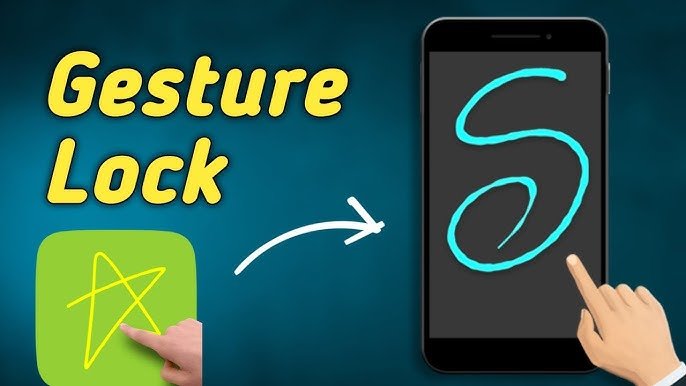
A gesture lock is a screen-lock method that uses a specific movement or pattern instead of a traditional password.
On many Android phones, the built-in equivalent is called a Pattern Lock. You connect dots on the screen in a specific sequence, and Android uses that pattern to authenticate you.
Some third-party applications may use the term “gesture lock” for additional swipe-based unlocking features.
How to Set a Gesture or Pattern Lock on Android
The exact settings can vary depending on your Android version and phone manufacturer.
Step 1: Open Settings
Open the Settings app on your Android smartphone.
You can find it in your app drawer or through the Quick Settings panel.
Step 2: Open Security Settings
Look for an option such as:
- Security
- Security & privacy
- Lock screen
- Biometrics and security
The exact name depends on your phone.
Step 3: Select Screen Lock
Find an option such as Screen lock type, Screen lock, or Device unlock.
Tap it to see the available security methods.
Step 4: Choose Pattern
Select Pattern if your device supports pattern-based unlocking.
Android will display a grid of dots.
Step 5: Create Your Gesture
Connect the dots in a pattern that you can remember.
Avoid using an extremely simple pattern that another person could easily guess.
Step 6: Confirm the Pattern
Draw the same pattern again when Android asks you to confirm it.
Step 7: Set a Backup Method
Your phone may also require a PIN or password as a backup authentication method.
Keep this information private and choose something that is difficult for others to guess.
How to Create a Strong Gesture Lock
Not all patterns provide the same level of security.
Avoid Simple Patterns
Avoid obvious patterns such as:
- Straight lines
- Simple squares
- Basic letters
- Very short patterns
- Patterns that start from an obvious corner
Use More Dots
A longer pattern can provide more possible combinations than a very short one.
Avoid Personal Shapes
Don’t use a pattern that represents an initial, birthday, or other easily guessed personal information.
Keep Your Screen Clean
Finger marks on the screen can sometimes reveal where you frequently swipe.
Cleaning your screen regularly can reduce this type of visual clue.
How to Change Your Android Gesture Lock
If you want to change your existing pattern:
- Open Settings.
- Go to Security, Security & privacy, or Lock screen.
- Select your current screen-lock settings.
- Enter your existing PIN, password, or pattern.
- Choose Pattern or the available lock option.
- Create and confirm your new pattern.
The menu names can differ between Android manufacturers.
How to Add Fingerprint With a Gesture Lock
Many Android smartphones allow you to use both a pattern and biometric authentication.
For example, you can use:
- Pattern + fingerprint
- PIN + fingerprint
- Password + fingerprint
Why Use Both?
Fingerprint unlocking can be convenient for everyday use, while the pattern provides a backup method when biometric authentication isn’t available.
Your phone may occasionally require the backup security method for security reasons.
Gesture Lock vs PIN vs Password
Each security method has different advantages.
| Lock Method | Convenience | Security |
|---|---|---|
| Pattern | Easy to use | Good |
| PIN | Fast | Good to strong |
| Password | Less convenient | Strong |
| Fingerprint | Very convenient | Strong |
| Face Unlock | Very convenient | Depends on device |
For important information, use the strongest security option that is practical for you.
How to Make Your Android Lock Screen More Secure
Setting a lock is only one part of smartphone security.
Use a Strong Backup PIN
If your phone requires a PIN as a backup, avoid simple combinations such as repeated or sequential numbers.
Enable Automatic Locking
Set your phone to lock automatically after a short period of inactivity.
Keep Android Updated
Install security and system updates when they become available for your device.
Use Biometric Security
If your phone supports fingerprint authentication, you can use it alongside your primary screen-lock method.
Avoid Sharing Your Pattern
Never share your unlock pattern with people you don’t trust.
What If You Forget Your Gesture Lock?
If you forget your pattern, don’t rely on random third-party “pattern unlock” tools or suspicious websites.
Depending on the phone and Android version, your legitimate recovery options may include:
- Using your registered backup authentication method
- Using the manufacturer’s official recovery process
- Recovering access through your device account where supported
- Resetting the device as a last resort
A factory reset can erase personal data stored on the phone, so it should not be treated as the first solution.
How to Avoid Forgetting Your Pattern
Choose a pattern that is memorable but not obvious.
You can also make sure you remember your backup PIN or password.
Avoid changing your lock method repeatedly unless necessary, as this can make it easier to forget the current one.
Are Gesture Lock Apps Safe?
Some third-party applications advertise additional gesture lock screens and customization features.
Before installing one, carefully check:
- Developer information
- User reviews
- App permissions
- Recent updates
- Source of the application
A third-party lock-screen app may not provide the same level of protection as Android’s built-in security system.
Be Careful With Permissions
A simple lock-screen customization application should not automatically need access to unrelated sensitive information.
Review permissions before granting access.
Common Gesture Lock Problems
Pattern Is Not Accepted
Make sure you’re drawing the same dots in the same order.
If the problem continues, use your legitimate backup authentication method.
Lock Screen Does Not Activate
Check your Android screen-lock settings and make sure the device is actually configured to lock after the selected timeout.
Fingerprint Stops Working
Android may require your backup pattern, PIN, or password after certain events such as restarting the phone.
Enter your backup method and try fingerprint authentication again.
Third-Party Lock Screen Keeps Disappearing
Android battery-management settings may stop some third-party applications from running in the background.
Check the app’s battery settings if necessary, but remember that built-in Android security is generally preferable to relying on a third-party lock screen.
Frequently Asked Questions
How do I set a gesture lock on Android?
Open Settings → Security or Lock Screen → Screen Lock, select Pattern, and create a pattern by connecting the dots.
Is gesture lock the same as pattern lock?
On many Android phones, yes. “Gesture lock” is often used to describe a pattern-based unlocking method, although some third-party apps use the term for different swipe gestures.
Is pattern lock secure?
A pattern lock provides useful protection, but security depends on how strong and difficult to guess the pattern is. A strong PIN or password can provide additional protection.
Can I use fingerprint and pattern together?
Yes, supported Android phones can generally use a pattern or PIN as the backup method for fingerprint unlocking.
What should I do if I forget my pattern?
Use the official recovery options available for your specific Android device. Avoid untrusted tools that claim to bypass the lock without authorization.
Can I change my gesture lock later?
Yes. You can normally change your pattern through Android’s security or lock-screen settings after authenticating with your current security method.
Do third-party gesture lock apps improve security?
Not necessarily. Many are primarily customization tools. For reliable device protection, use Android’s built-in security features whenever possible.
Final Thoughts
Learning how to set a gesture lock on Android is simple on most smartphones. The built-in pattern lock lets you create a personalized unlock sequence while keeping your phone protected from casual unauthorized access.
For better security, avoid obvious patterns, keep your Android software updated, use a strong backup PIN or password, and consider fingerprint authentication if your device supports it.
If you forget your gesture lock, use only the official recovery options provided by your device manufacturer or Android. Avoid suspicious applications and websites promising instant lock-screen bypasses.
Disclaimer
This article is for informational purposes only. Android settings and available security features vary by device manufacturer and Android version. Always use your phone manufacturer’s official security and recovery methods.