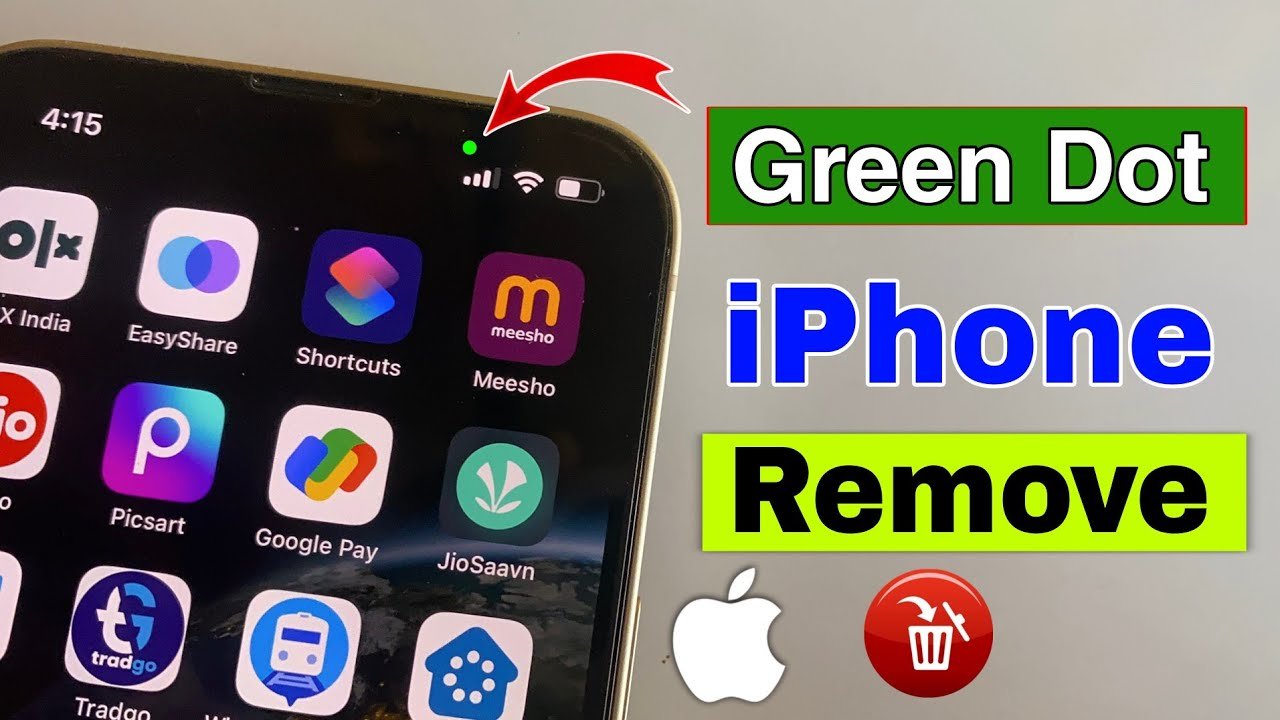
Smartphones have become an important part of everyday life. We use different applications for communication, entertainment, photography, online services, and productivity. However, many apps request access to sensitive features such as the camera, microphone, contacts, and location. Understanding these permissions is an important step toward maintaining better privacy on Android devices.
Green Dot Settings is a topic that attracts Android users who want to understand app permissions and privacy indicators. The Permission Manager application by Shexa, available on Google Play, provides a reference point for users interested in managing and understanding application permissions.
In this review, we will explore the purpose of permission management, how Android privacy indicators work, important features to look for, and how users can review application access safely.
What Is Green Dot Settings?
Green Dot Settings generally refers to the privacy indicator and permission-related settings that Android users may encounter on their smartphones.
On supported Android devices, a small green indicator can appear when an application is using the camera or microphone. This indicator helps users become aware of certain sensitive activities taking place in the background or while using an application.
The Permission Manager app by Shexa is listed on Google Play and is related to application permission management. Users interested in this category can explore the app to understand its available tools and features.
It is important to remember that the green indicator is part of Android’s privacy functionality, while the appearance and features of individual permission-management applications may vary.
Permission Manager App Overview
The main purpose of an Android permission manager is to help users understand which applications have access to different device features.
For example, a social media application may request camera access for taking pictures, while a navigation application may need location access to provide directions.
A permission-management tool can make it easier to review these access requests and understand why applications may need particular permissions.
App information:
- App Name: Permission Manager
- Developer: Shexa
- Platform: Android
- Category: Tools / Privacy
- Main Topic: Application Permissions
- Official Listing: Google Play Store
You can view the application information through its official Google Play listing:
Main Features to Explore
The following sections explain important permission-management functions and Android privacy concepts. The availability of individual tools depends on the application version and device.
1. Application Permission Management
One of the most useful aspects of permission management is the ability to review which applications can access specific smartphone features.
Android allows users to manage permissions for installed applications. Depending on the device and Android version, available permission categories may include:
- Camera
- Microphone
- Location
- Contacts
- Photos and videos
- Notifications
- Nearby devices
Reviewing these permissions regularly can help users understand how their installed applications interact with their devices.
2. Camera Privacy Indicator
Android includes a privacy indicator that can notify users when an application accesses the camera.
On supported versions and devices, a green indicator appears near the top of the screen when the camera is being used.
This feature is useful because users can become aware of camera activity without manually checking every installed application.
However, the exact appearance and behavior of the indicator can vary depending on the Android version and manufacturer.
3. Microphone Access Awareness
Microphone access is another important privacy consideration.
Many applications use microphone access for voice messages, video calls, recording, and other audio-related activities.
Android’s privacy indicators can help users identify when the microphone is active on supported devices.
If an application requests microphone permission without an obvious reason, users can review its access through Android settings.
4. Location Permission Controls
Location access can help applications provide useful services, including maps, navigation, weather information, and location-based recommendations.
However, not every application needs continuous access to your location.
Android provides permission options that may include:
- Allow all the time
- Allow only while using the app
- Ask every time
- Don’t allow
The available options depend on the Android version and the specific permission.
Choosing the appropriate access level can help reduce unnecessary location sharing.
5. Reviewing Installed Applications
A permission manager can help users think more carefully about the applications installed on their devices.
For example, a basic calculator may not normally need access to contacts or the microphone.
Reviewing permissions gives users an opportunity to identify unnecessary access requests and adjust them where appropriate.
6. Better Privacy Awareness
Privacy is not only about blocking access. It is also about understanding why an application needs a particular permission.
A permission-management tool can be useful for people who want to become more familiar with Android security settings.
Users should always consider the application’s purpose before allowing or denying access.
How to Check Green Dot Activity on Android
If you notice a green indicator on your smartphone screen, you can use Android’s built-in privacy controls to understand the activity.
Follow these general steps:
Step 1: Open an application that uses the camera or microphone.
Step 2: Look at the upper section of your smartphone screen for the privacy indicator.
Step 3: When the green indicator appears, swipe down from the top of the screen to open the notification or Quick Settings panel.
Step 4: On supported Android versions, tap the privacy indicator to see which application is using the camera or microphone.
Step 5: If the access seems unnecessary, open your phone’s Settings and review the application’s permissions.
These steps may look slightly different depending on your phone manufacturer and Android version.
How to Manage App Permissions on Android
Android provides built-in permission controls that allow users to decide which device features applications can access.
Here is a general method:
- Open Settings on your Android phone.
- Find Privacy or Security and Privacy.
- Open Permission Manager or Permission Controls.
- Select a permission category, such as Camera or Microphone.
- Review the applications listed in that category.
- Select an application to change its access.
- Choose an appropriate permission option.
Some smartphones place these options under Apps, App Management, or Special App Access.
It is better to use Android’s built-in settings for important permission changes because they are part of the operating system.
Why Are Android Permissions Important?
Application permissions help control access to sensitive smartphone features and information.
Without permission controls, users may find it difficult to understand how installed applications interact with personal information.
Here are some reasons why reviewing permissions is useful.
Protecting Personal Information
Contacts, photos, location information, and other personal data deserve careful attention. Reviewing application access can help users make more informed privacy decisions.
Understanding Camera and Microphone Access
Camera and microphone permissions are particularly important because they involve hardware that can capture visual and audio information.
Android privacy indicators provide additional awareness when these features are being accessed.
Reducing Unnecessary Access
Some applications may request permissions that are not essential for their main purpose. Users can review these requests and decide whether the access is appropriate.
Improving Smartphone Privacy Habits
Checking permissions occasionally is a simple way to become more aware of smartphone privacy settings.
Green Dot Settings vs Android Permission Manager
It is useful to understand the difference between Android’s built-in privacy functionality and a separate permission-management application.
| Feature | Android Built-in Settings | Third-Party Permission App |
|---|---|---|
| Permission Controls | System supported | Depends on app capabilities |
| Camera Access | Supported | Depends on app capabilities |
| Microphone Access | Supported | Depends on app capabilities |
| Privacy Indicator | Android feature | Not necessarily provided |
| Device Compatibility | Depends on Android version | Depends on app requirements |
| Permission Changes | System settings | Depends on app capabilities |
Android’s built-in controls should remain the primary option for managing sensitive permissions.
Is Permission Manager by Shexa Worth Exploring?
Permission Manager by Shexa may be worth exploring for Android users interested in application permissions and smartphone privacy.
Before using it, review its Google Play Store description, supported Android versions, developer information, user feedback, and privacy disclosures.
Keep in mind that a third-party permission-management application does not automatically have the same system-level access as Android’s own settings.
If your main goal is to manage camera, microphone, or location permissions, Android already provides built-in options for these tasks.
Important Things to Consider Before Using a Permission App
Before installing or using any privacy-related application, consider the following points:
Check the Developer: Review the developer’s identity and application information on Google Play.
Read User Reviews: Feedback from other users may help you understand the application’s usability and limitations.
Review Permissions: Pay attention to the permissions requested by the application itself.
Check Privacy Information: Read the available privacy policy and data safety information.
Keep Android Updated: Security updates can improve device protection and privacy functionality.
Avoid Unnecessary Access: Do not grant sensitive permissions without understanding why they are required.
Frequently Asked Questions
What is Green Dot Settings on Android?
Green Dot Settings generally relates to Android privacy indicators and permission awareness. On supported devices, a green indicator can appear when an application uses the camera or microphone.
What does the green dot mean on my phone?
The green indicator generally means that an application is accessing the camera or microphone on supported Android devices. You can check the privacy indicator or Quick Settings panel to identify the application.
What is Permission Manager by Shexa?
Permission Manager by Shexa is an Android application listed on Google Play. Users can visit its official listing to review its description, compatibility, and available information about its permission-management tools.
Can I manage camera permissions without another application?
Yes. Android provides built-in camera permission controls. Open Settings, find Privacy or Permission Manager, and review the applications that have camera access.
Can I turn off the green privacy indicator?
The availability of indicator controls depends on your Android version and device manufacturer. The indicator is part of Android’s privacy awareness functionality, so it is better to understand the activity rather than disable an important security notification.
Does every Android phone show a green dot?
No. The appearance and availability of privacy indicators depend on the Android version and device manufacturer. Some devices may display indicators differently.
Is Permission Manager by Shexa safe?
Safety cannot be guaranteed based only on an application name. Review its developer information, Google Play data safety section, privacy policy, permissions, and user feedback before using it.
Final Verdict
Green Dot Settings is a useful topic for Android users who want to understand smartphone privacy indicators and application permissions.
Permission Manager by Shexa provides an application listing for users interested in this category. However, Android’s built-in privacy settings remain an important way to review sensitive permissions such as camera, microphone, and location access.
Whether you use a separate permission-management tool or the default Android settings, understanding application access can help you make better privacy decisions and use your smartphone more confidently.
Disclaimer: This article is for informational and educational purposes only. App features and compatibility may change over time. We are not affiliated with or endorsed by Shexa or Google.