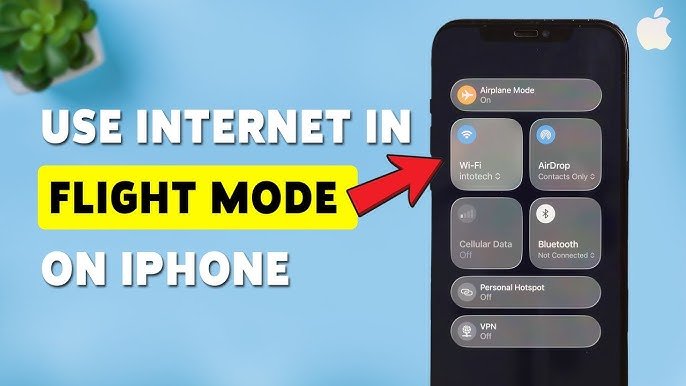
Want to know how to use internet with Flight Mode without completely disabling Airplane Mode? In many situations, you can still use Wi-Fi while Airplane Mode is enabled. This can be useful when you’re traveling, on an airplane with Wi-Fi, or simply want to temporarily disable cellular connections while keeping internet access.
The exact behavior depends on your Android or iPhone model, operating-system version, and the rules of the airline or network you’re using.
What Is Flight Mode?
Flight Mode, also called Airplane Mode, is a device setting designed to disable wireless communication features that may interfere with aircraft systems.
When you enable it, your phone will typically disable:
- Cellular mobile data
- Cellular calls
- SMS
- Wi-Fi
- Bluetooth
However, Wi-Fi and Bluetooth can often be turned back on manually while Airplane Mode remains enabled.
Can You Use Internet in Flight Mode?
Yes, in many cases.
The most common method is to turn on Airplane Mode and then manually enable Wi-Fi.
This allows your phone to remain in Airplane Mode while connecting to a Wi-Fi network.
For example, if an airplane provides Wi-Fi, you may be able to:
Airplane Mode ON → Wi-Fi ON → Connect to Wi-Fi → Use Internet
Your cellular connection remains disabled while your phone uses Wi-Fi for internet access.
How to Use Internet With Flight Mode on Android
The process can vary slightly depending on your Android phone.
Step 1: Turn On Airplane Mode
Open Quick Settings by swiping down from the top of the screen.
Tap Airplane Mode or Flight Mode.
Your cellular connection should be disabled.
Step 2: Turn Wi-Fi Back On
Open Quick Settings again.
Tap the Wi-Fi icon to turn it on.
Alternatively, go to:
Settings → Network & Internet → Wi-Fi
The exact menu name depends on your Android manufacturer.
Step 3: Choose a Wi-Fi Network
Select an available Wi-Fi network.
Enter the password if required.
Step 4: Start Using the Internet
Once connected, you can use internet-based services such as:
- Web browsing
- Messaging apps
- Online documents
- Streaming, where permitted
- Cloud services
Your phone can remain in Airplane Mode while using Wi-Fi.
How to Use Internet With Flight Mode on iPhone
iPhone users can also use Wi-Fi while Airplane Mode is enabled.
Step 1: Enable Airplane Mode
Open Control Center and tap the Airplane Mode icon.
Step 2: Enable Wi-Fi
Tap the Wi-Fi icon to turn Wi-Fi back on.
You can also go to:
Settings → Wi-Fi
Step 3: Connect to Wi-Fi
Select the network you want to use and enter its password.
Once connected, internet access should work through Wi-Fi while cellular connectivity remains disabled.
Can You Use Mobile Data in Flight Mode?
Normally, Airplane Mode disables cellular mobile data.
If you manually enable mobile data while Airplane Mode is active, the behavior can depend on your phone, carrier, and software version.
However, Airplane Mode is specifically intended to disable cellular radio communication, so it is better to use Wi-Fi rather than trying to bypass the purpose of Airplane Mode.
Can You Use WhatsApp in Flight Mode?
Yes, if you have an active Wi-Fi connection.
For example:
Airplane Mode ON → Wi-Fi ON → WhatsApp connected
You can potentially send messages, make internet-based calls, receive media, and use other online features as long as the Wi-Fi network provides internet access.
WhatsApp itself does not require cellular mobile data when you’re connected to Wi-Fi.
Can You Receive Calls in Flight Mode?
Traditional cellular calls normally won’t work while Airplane Mode is enabled because the cellular connection is disabled.
However, internet-based calling services may work over Wi-Fi if the service and network support them.
Examples can include:
- WhatsApp calls
- Messenger calls
- FaceTime
- Other internet calling services
Availability can depend on your location, device, account, and network.
Can You Browse the Internet in Airplane Mode?
Yes.
You only need to connect to a working Wi-Fi network after enabling Airplane Mode.
Once connected, you can open your browser and visit websites normally.
This is particularly useful when using:
- Airport Wi-Fi
- Hotel Wi-Fi
- Home Wi-Fi
- Café Wi-Fi
- In-flight Wi-Fi
How to Connect to Wi-Fi on an Airplane
If your airline provides Wi-Fi, follow the airline’s instructions.
1. Enable Airplane Mode
Turn on Airplane Mode before or as instructed by the airline.
2. Enable Wi-Fi
Turn Wi-Fi back on while leaving Airplane Mode enabled.
3. Select the Aircraft Wi-Fi
Choose the network provided by the airline.
4. Open the Login Page
Some in-flight Wi-Fi networks require you to open a browser and accept terms or purchase a Wi-Fi package.
5. Connect to the Internet
After authentication, you can use the services allowed by the airline’s Wi-Fi network.
Always follow the crew’s instructions and the airline’s current connectivity rules.
Why Does Wi-Fi Turn Off When I Enable Flight Mode?
This is normal.
Airplane Mode is designed to disable wireless radios, including Wi-Fi, when first activated.
Modern smartphones often allow you to manually turn Wi-Fi back on afterward.
Your phone may also remember this preference and behave differently the next time you activate Airplane Mode.
Flight Mode vs Wi-Fi Mode
These two settings serve different purposes.
Flight Mode
Disables cellular communication and usually initially turns off Wi-Fi and Bluetooth.
Wi-Fi
Provides a local wireless connection that can give your phone access to the internet.
Therefore, you can have:
Flight Mode ON + Wi-Fi ON
This combination is often the easiest way to use internet without cellular connectivity.
Benefits of Using Internet With Flight Mode
Saves Mobile Data
If you’re connected to Wi-Fi, your phone doesn’t need to use cellular mobile data.
Reduces Cellular Connectivity
Airplane Mode keeps cellular connections disabled while still allowing Wi-Fi when permitted.
Useful While Traveling
You can use airport, hotel, or airplane Wi-Fi without turning cellular connectivity back on.
Can Help Avoid Roaming Charges
When traveling internationally, using Wi-Fi while keeping cellular connectivity disabled can help prevent unintended cellular roaming usage.
However, check your carrier’s settings and roaming policies before traveling.
What If Wi-Fi Doesn’t Work in Flight Mode?
Try these troubleshooting steps.
Restart Wi-Fi
Turn Wi-Fi off and back on.
Forget and Reconnect
Go to your Wi-Fi settings, forget the network, and reconnect using the correct password.
Restart Your Phone
A restart can resolve temporary network problems.
Check the Wi-Fi Network
If other devices also cannot connect, the problem may be with the Wi-Fi service rather than your phone.
Check Captive Portal Login
Public Wi-Fi networks often require you to accept terms or sign in before internet access becomes available.
Does Flight Mode Save Battery?
It can reduce battery usage in situations where your phone would otherwise spend time searching for cellular networks.
For example, if you’re in an area with poor cellular coverage, enabling Airplane Mode can prevent your phone from repeatedly searching for a signal.
If you still need internet, you can manually enable Wi-Fi.
Frequently Asked Questions
Can I use Wi-Fi while Flight Mode is on?
Yes. On many modern Android phones and iPhones, you can enable Wi-Fi manually after turning on Airplane Mode.
Can I use internet without disabling Airplane Mode?
Yes. The usual method is to keep Airplane Mode enabled and turn Wi-Fi back on.
Can I use WhatsApp in Flight Mode?
Yes, if you connect your phone to Wi-Fi. WhatsApp can use the Wi-Fi internet connection instead of mobile data.
Can I use mobile data in Airplane Mode?
Airplane Mode normally disables cellular data. The exact behavior of manually changing cellular settings can vary by device and carrier.
Can I use Bluetooth in Flight Mode?
Many modern phones allow Bluetooth to be manually enabled while Airplane Mode remains on. Follow the airline’s instructions when traveling by air.
Does Wi-Fi work on an airplane?
Some aircraft provide in-flight Wi-Fi. Availability, pricing, and permitted services depend on the airline and aircraft.
Final Thoughts
Using the internet with Flight Mode is possible on most modern smartphones when you have access to Wi-Fi. Simply enable Airplane Mode and then manually turn Wi-Fi back on.
This setup can be particularly useful while traveling because it allows you to use Wi-Fi services without reconnecting to cellular networks. It can also help avoid unnecessary mobile-data or roaming usage.
If you’re on an airplane, always follow the airline’s instructions regarding Airplane Mode, Wi-Fi, and device connectivity.
Disclaimer
This article is for informational purposes only. Airplane Mode behavior can vary by device, operating-system version, carrier, and airline. When traveling by air, always follow the instructions provided by the airline and cabin crew.