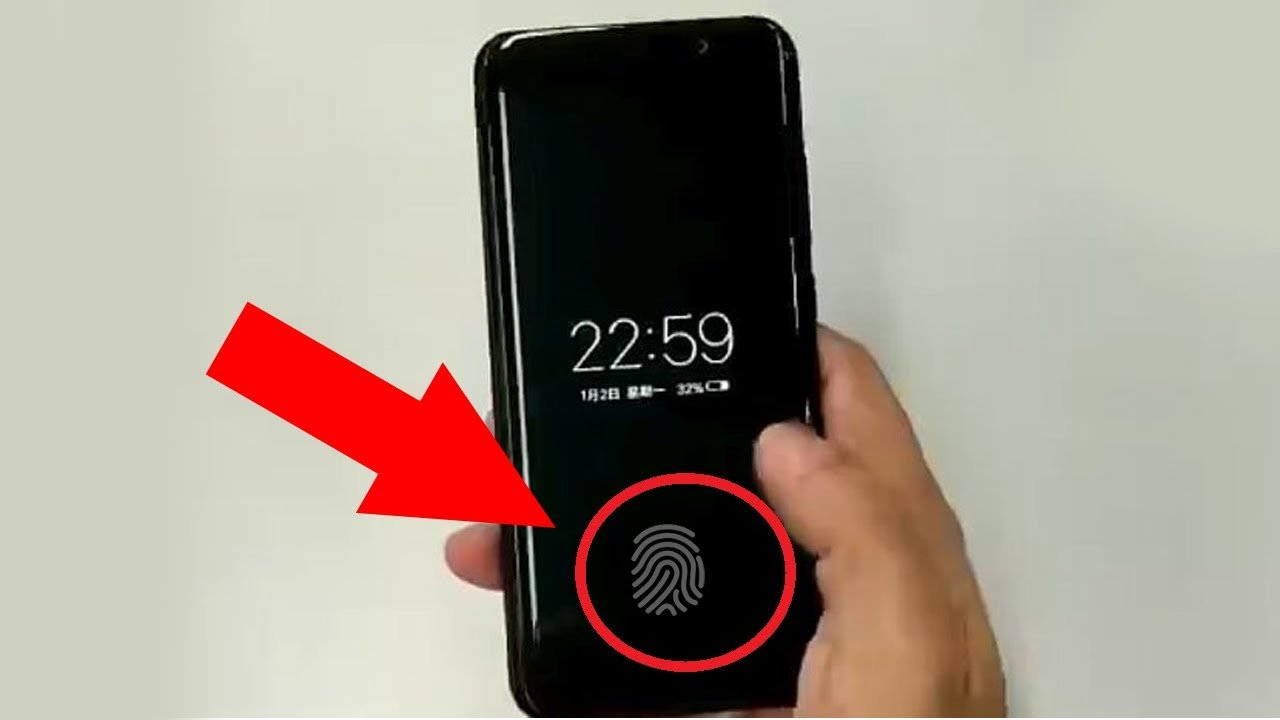
Want to know how to set a display fingerprint lock on Android? Fingerprint unlocking is one of the easiest ways to secure a modern smartphone. Instead of entering a PIN or password every time, you can unlock your phone by placing a registered finger on the fingerprint sensor or the fingerprint area on the display.
Many newer Android phones come with an in-display fingerprint sensor, which is built directly into the screen. The exact setup process can vary depending on your phone brand and Android version.
In this guide, we’ll explain how to set up fingerprint lock on Android, how to add a fingerprint, how to troubleshoot common problems, and how to keep your device secure.
What Is an In-Display Fingerprint Lock?
An in-display fingerprint lock is a biometric security feature that allows your phone to recognize your fingerprint through a sensor built underneath the smartphone display.
When you place your registered finger on the fingerprint area, the sensor verifies your fingerprint and unlocks the device.
This technology is commonly found on many modern Android smartphones.
Optical Fingerprint Sensors
Optical sensors use light to capture an image of the fingerprint placed on the display.
They are commonly used in smartphones with in-display fingerprint readers.
Ultrasonic Fingerprint Sensors
Some smartphones use ultrasonic technology to recognize fingerprints.
These sensors use sound waves rather than relying only on a traditional optical image.
The technology used depends on the specific phone model.
How to Set Fingerprint Lock on Android
The menu names can be slightly different depending on your Android phone manufacturer.
However, the general process is similar.
Step 1: Open Settings
Open the Settings app on your Android phone.
You can usually find it in your app drawer or Quick Settings.
Step 2: Open Security Settings
Look for an option such as:
Security & Privacy
or:
Biometrics and Security
Some phones may simply display:
Security
Step 3: Select Fingerprint
Look for an option such as:
Fingerprint
Fingerprint Unlock
or:
Biometrics
Tap the relevant option.
Step 4: Set a Screen Lock
If you haven’t already created a secure screen lock, Android may ask you to set one first.
You may be able to choose:
- PIN
- Password
- Pattern
This backup security method is important because your phone may require it in certain situations.
Step 5: Register Your Fingerprint
Follow the instructions displayed on your screen.
Place your finger on the fingerprint sensor when requested.
Lift your finger and place it again several times so the phone can record different parts of your fingerprint.
Step 6: Complete Fingerprint Registration
Once the phone has captured enough information, the fingerprint setup should be complete.
You can now use your registered fingerprint to unlock the phone where supported.
How to Set Fingerprint Lock on Samsung Phones
Samsung Galaxy devices may use a menu similar to:
Settings → Lock screen → Screen lock type → Fingerprints
On some newer models, the exact menu can vary depending on the One UI version.
Follow the instructions shown on the screen to register your fingerprint.
How to Set Fingerprint Lock on Xiaomi Phones
On Xiaomi, Redmi, and POCO devices, fingerprint settings may generally be found under:
Settings → Passwords & security → Fingerprint unlock
The exact wording can vary between MIUI, HyperOS, and individual device models.
How to Set Fingerprint Lock on OnePlus Phones
On many OnePlus devices, fingerprint settings can generally be accessed through:
Settings → Security & privacy → Device unlock → Fingerprint
The exact location may differ depending on the OxygenOS version.
How to Set Fingerprint Lock on Other Android Phones
Different manufacturers use different names for biometric settings.
If you cannot find the fingerprint option, use the search bar inside Android Settings and search for:
Fingerprint
or:
Biometric
This is often the quickest way to find the correct menu.
How to Add More Than One Fingerprint
Many Android phones allow multiple fingerprints to be registered.
This can be useful if you normally hold your phone in different ways.
Steps to Add Another Fingerprint
Go to your fingerprint settings.
Enter your PIN, password, or pattern if requested.
Select:
Add fingerprint
Follow the on-screen instructions and register another finger.
You can register a finger from your other hand as well.
Why Should You Use Fingerprint Lock?
Fingerprint authentication provides several advantages.
Quick Unlocking
You can unlock your phone quickly without typing a PIN every time.
Convenient Security
Your fingerprint is always with you, making biometric authentication convenient for everyday use.
Better Privacy
A secure screen lock helps prevent unauthorized access to your personal information.
App Authentication
Depending on your phone and the application, fingerprint authentication may also be available for supported apps and services.
How to Make Fingerprint Unlock More Reliable
Sometimes fingerprint recognition doesn’t work properly.
Try these tips to improve recognition.
Keep Your Finger Clean
Dirt, oil, or moisture can make fingerprint recognition less reliable.
Clean and dry your finger before trying again.
Keep the Screen Clean
For an in-display fingerprint sensor, dirt or moisture on the screen can interfere with recognition.
Use a soft, clean cloth to wipe the fingerprint area.
Register Your Finger Correctly
During setup, move your finger slightly between each scan.
This helps the phone capture different parts of your fingerprint.
Register the Same Finger Again
If recognition remains poor, remove the existing fingerprint and register it again.
Why Is My Display Fingerprint Not Working?
There are several possible reasons.
Screen Protector Problem
Some thick or incompatible screen protectors can interfere with an in-display fingerprint sensor.
If the problem started after installing a new screen protector, check whether it is officially compatible with your phone.
Dirty Screen
Clean the fingerprint area and try again.
Wet Finger
Fingerprint sensors may have difficulty recognizing a wet finger.
Dry your finger before unlocking the device.
Software Issue
Restart your phone and check whether a system update is available.
Fingerprint Data Problem
Try deleting the existing fingerprint and registering it again.
What to Do If Fingerprint Unlock Suddenly Stops Working
Android may occasionally require your PIN, password, or pattern instead of your fingerprint.
This can happen for security reasons, such as after restarting the phone or under certain system conditions.
Enter your backup screen-lock method and then try fingerprint unlocking again.
If the fingerprint sensor continues to fail, check the manufacturer’s troubleshooting instructions for your specific model.
Can You Use Fingerprint Without a PIN?
Usually, Android requires a backup screen-lock method such as a PIN, password, or pattern when setting up biometric authentication.
This provides an alternative way to access the device when fingerprint authentication is unavailable.
The exact behavior can vary depending on the device and Android version.
Is Fingerprint Lock Safe?
Fingerprint authentication is a useful security feature, but no security method is perfect.
For stronger protection:
- Use a strong PIN or password
- Keep Android updated
- Avoid sharing your screen-lock credentials
- Register only your own fingerprints
- Download apps from trusted sources
- Review sensitive app permissions
For highly sensitive information, use the security features recommended by your device manufacturer.
Frequently Asked Questions
How do I set a fingerprint lock on Android?
Open Settings, find Security, Biometrics, or Fingerprint, set a PIN/password/pattern if required, and follow the instructions to register your fingerprint.
Can I add two fingerprints on Android?
Yes, many Android phones allow multiple fingerprints. The number of fingerprints supported depends on the device.
Why is my in-display fingerprint not working?
A dirty screen, wet finger, incompatible screen protector, software issue, or incorrectly registered fingerprint can cause problems.
Does every Android phone support display fingerprint?
No. In-display fingerprint sensors are available only on supported smartphone models.
Can I use fingerprint to unlock apps?
Some Android phones and individual applications support fingerprint authentication for apps, but availability depends on the device and app.
Is an in-display fingerprint better than a PIN?
Fingerprint unlocking is generally more convenient, while a PIN or password provides a backup authentication method. Using both gives you flexibility.
Final Thoughts
Setting up an in-display fingerprint lock on Android is usually a simple process. Open your phone’s security or biometric settings, create a backup PIN or password if required, and register your fingerprint by following the on-screen instructions.
If fingerprint recognition isn’t working correctly, clean the screen and your finger, check the screen protector, restart the phone, and consider registering your fingerprint again.
Because Android menus differ between manufacturers, the exact steps may vary slightly. If you cannot find the fingerprint option, search for Fingerprint or Biometric inside the Settings app.
Disclaimer
This article is for informational purposes only. Fingerprint settings and menu names may vary by Android version, phone manufacturer, and device model. Always follow your device manufacturer’s official security instructions.